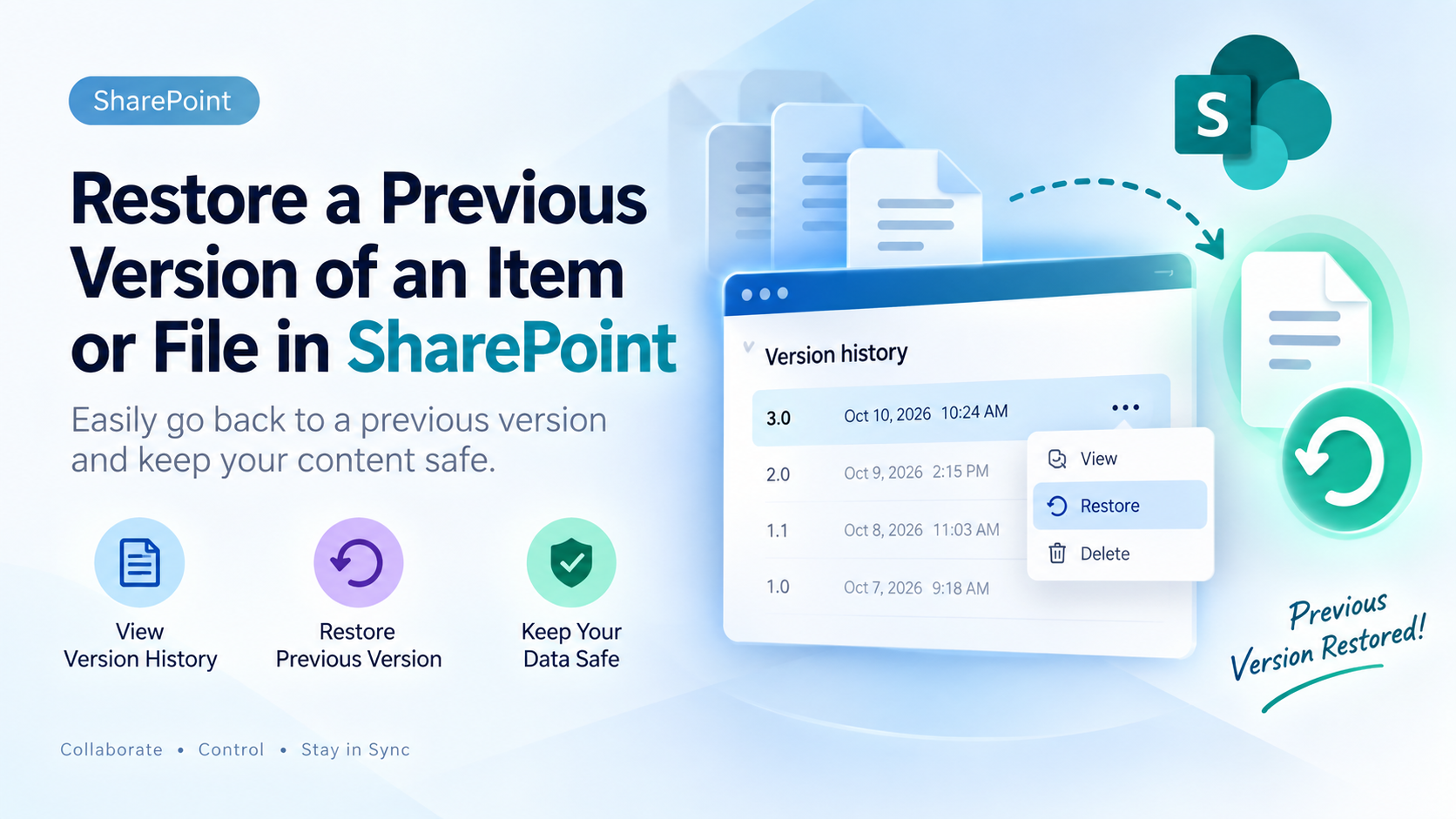
If your SharePoint lists or libraries are set to track versions, you can restore a previous version of a list item or file. To learn how you can delete a version, all versions, or just minor versions of an item or file if your list or library is configured for it, see Delete a previous version on an item or file in SharePoint.
For info about turning versioning on, see Turn on version history in SharePoint. For info about restoring SharePoint files stored in OneDrive, see Restore a previous version of a file in OneDrive.
Restore a previous version in SharePoint
Open the list or library with the item or document for which you want to view its history.
Next to the item for which you want to view history, select the ... (ellipses).
Select Version history.

If you don't see Version history, select More, and then select Version history.
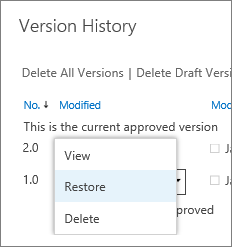
In the Version history dialog, hover your mouse over the date link on an earlier version. To show the menu, select the down arrow.

In the menu, select Restore.
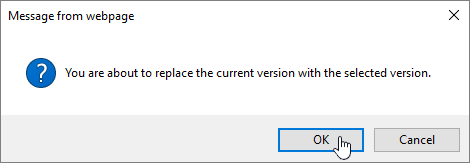
To restore your selected version as the current version, select OK.
Note
SharePoint doesn't remove the earlier version you just restored. It creates a copy and makes it the latest version.
When you're done, select the X in the upper right corner of the Version history window to close it.
Turn on version history in SharePoint
Version History is turned on by default in SharePoint, but if you don't see the Version History command, it might be turned off. Depending on how your admin has set up SharePoint, you might be able to turn on list or library versioning.
For info about SharePoint versioning settings, see Enable and configure versioning for a list or library.
Also, see How versioning works in lists and libraries.
Not sure which version you have? See Which version of SharePoint am I using?

forum Discussion (0 comments)
Join the Discussion
Login to share rich-text comments and reply to other members.
No comments yet. Be the first to share your thoughts!