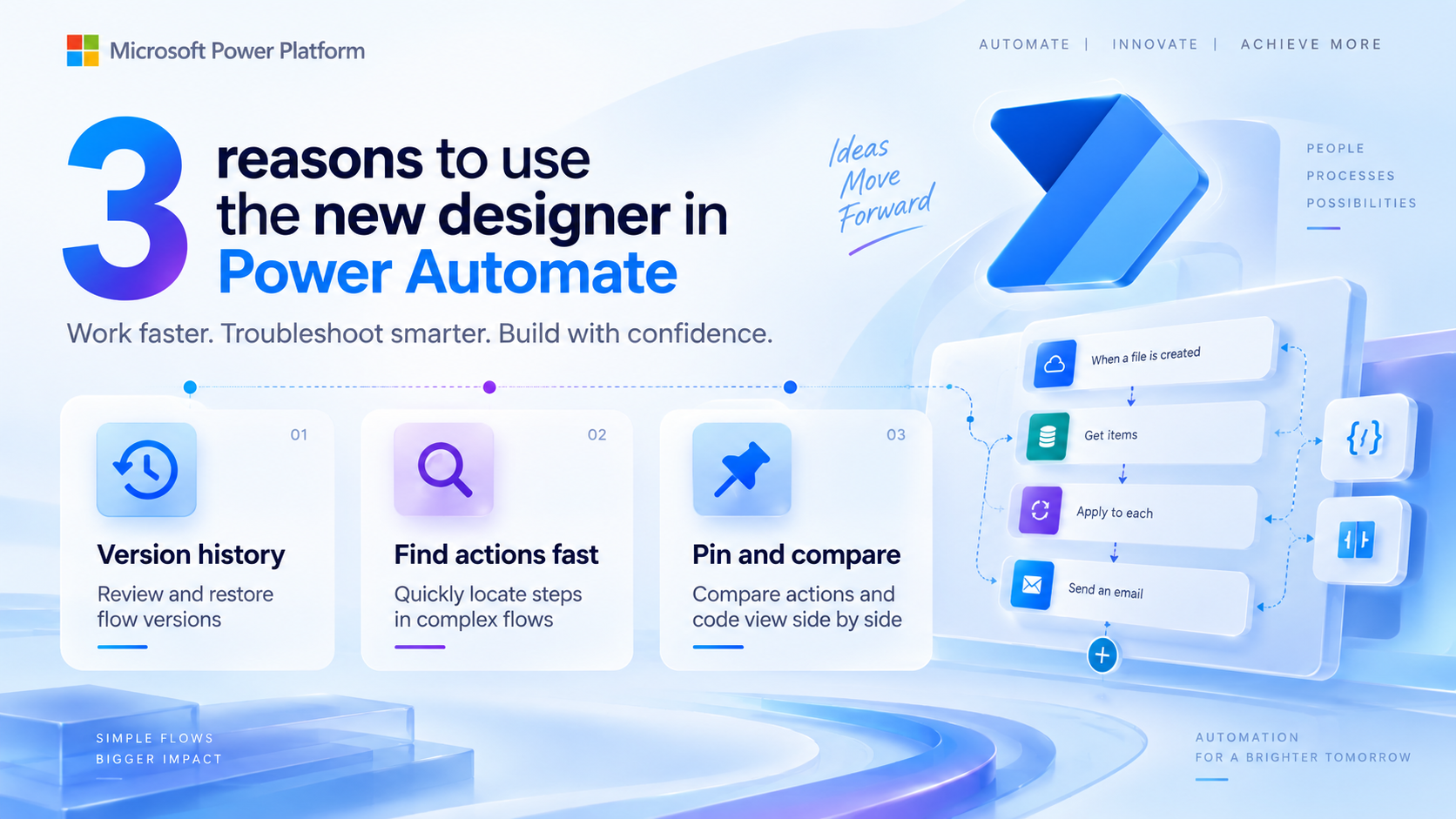
This feature has been hidden away in between the other options, but Version history is just a great way to recover from that Oops moment.
 Version history in the New Designer
You can then click on each of the versions of the flow and review the changes made within each version, before potentially restoring that version.
 Select the version that you want to restore
The flow designer will show you exactly which steps you had in each version.
 Display the flows for each version
Even if your changes didn’t add any steps, you can click on the steps to review the settings for each step.
And the best part of this solution is that it even collects the versions of your flow that were created with the old designer.
New Designer Reason 2 – Find an action in your flow
How often are you looking for that one action in your flow with many branches?
 Search for actions within your flow
Searching for actions is one of my favourite reasons to use the new designer. Especially in flows with many conditions, switches and scopes. All these containers can leave actions hidden. But with the search it is easy to find that one important step that you want to update.
 Go to operations overview
New Designer Reason 3 – Pinning of actions
Now this is a bit of an often questioned feature. You can pin one action and then open the settings of another action and compare the settings.
 Pin a step in your flow
Also, don’t forget the code view. In my example, I can fairly quickly see what is configured differently when I compare that work and failing step in my flow.
 Compare code view
In the past you would update two actions that are located near each other by opening both actions. As shown below when you have a create item and an update item this is easily done. However, when the actions are not near each other this would be a real pain.
 Old designer works well for steps that are near each other
What makes you use the new designer? What needs to be added, changed or fixed in the new designer for you to use this? Or do you find yourself just use it without realising that you’ve been working with the new designer?

forum Discussion (0 comments)
Join the Discussion
Login to share rich-text comments and reply to other members.
No comments yet. Be the first to share your thoughts!