
Run After settings
Run after settings have existed in Power Automate for a very long time. They let you control the need for steps to run depending on if a previous step was successful, failed, skipped or timed out.
The Run After settings were the start of the try catch pattern in 2018. But how about the new settings. You can select any of the actions that appear earlier in your flow.
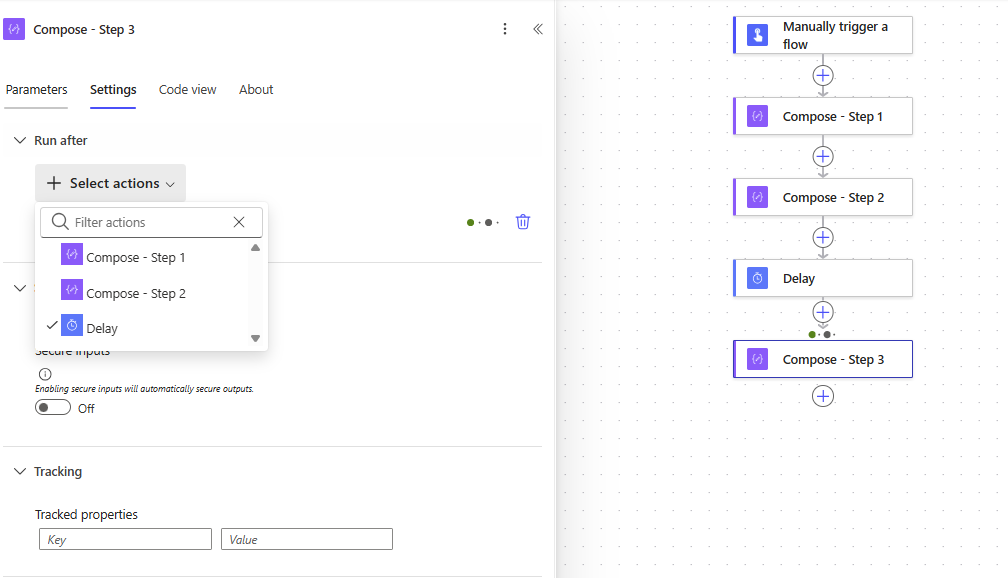 New Designer Run After Settings
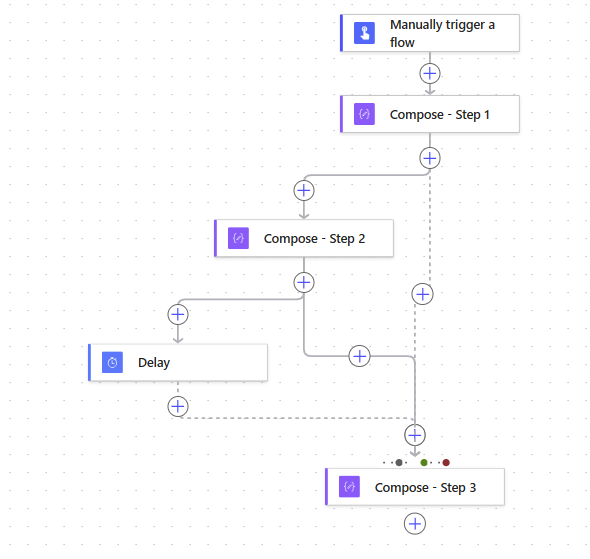
So by selecting Compose Step 1 in the Step 3’s run after setting you could end up with this flow:
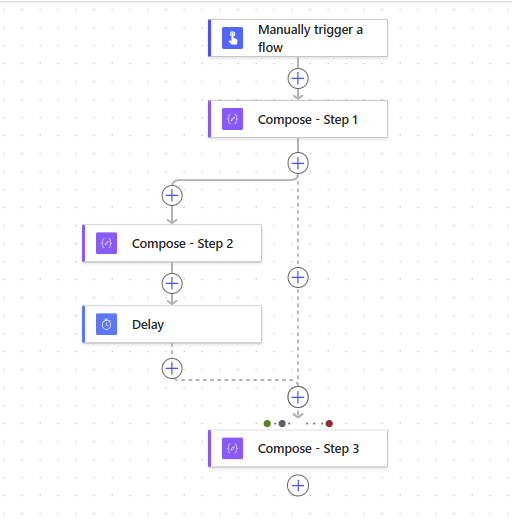 New Designer flow logic
Please note that this is only available in the new UI. Even though flows can still be edited in the in the old UI. I guess Microsoft have given up with updates to the old UI. As we all know some flows cannot be edited in the New Designer.
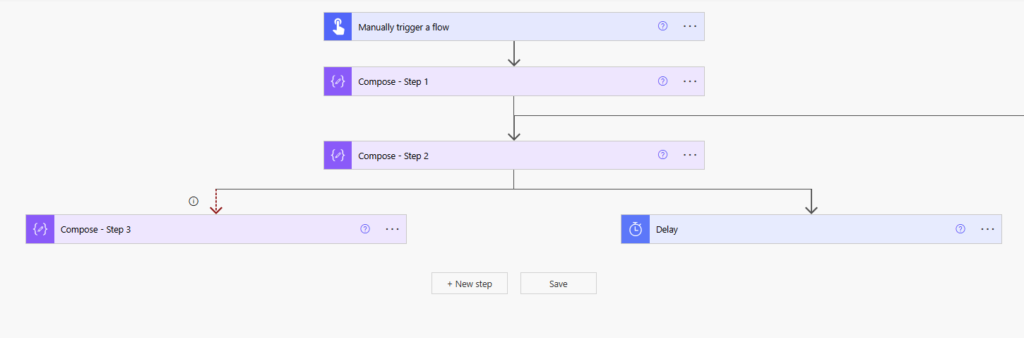
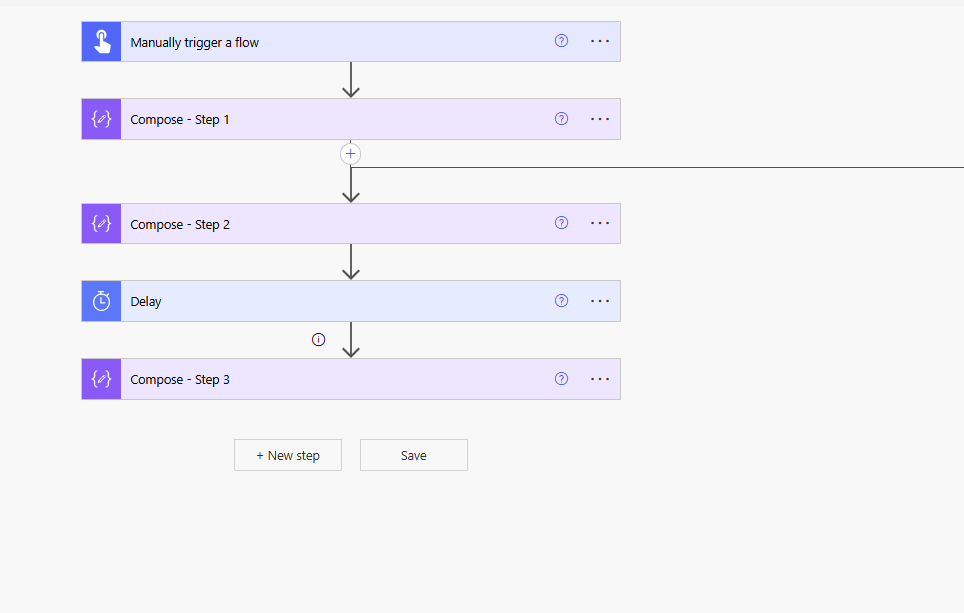 Classic designer showing the same flow
It looks like we now have a broken Classic Designer.
Now assuming that the New Designer works it is worth looking at how this works. We can see the two sets of dots above Step 3. Our settings have been configured to run step 3 when the Delay action has been skipped (for example when Step 1 fails) and when Step 1 is successful or has failed.
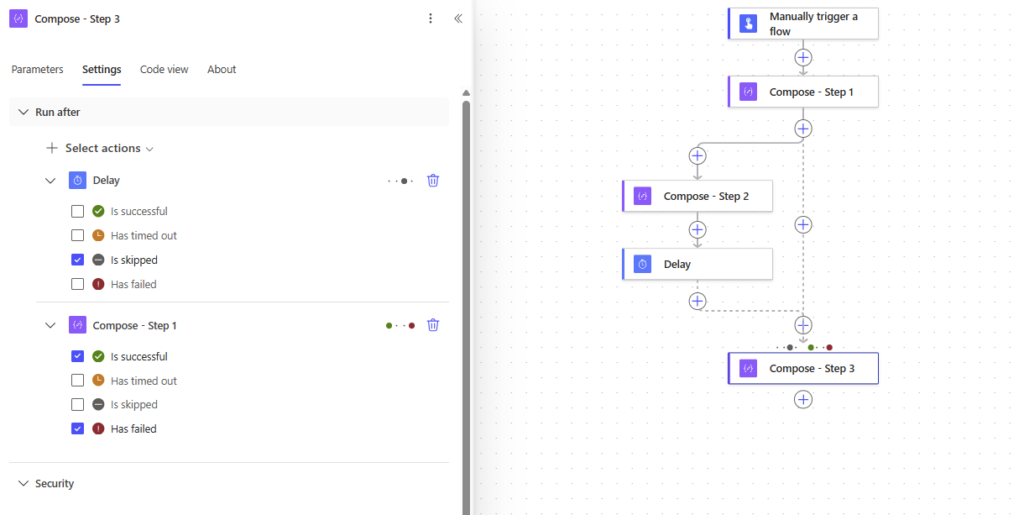 Multiple branches with the Run after settings
It is important to realize that each set of conditions has to be true. We have a logical AND here in the conditions.
If we take this a bit further then I do hope that we all agree that the following is absolutely horrible! Understanding the following logic will be a real challenge.
 Yuck!
Yuck!Within the old UI the above would appear with parallel branches. Even though we didn’t specify any parallel branches.
If you thought that switching back tot he new Designer would solve your problem. Then have a look at the result when I reopened my flow in the Modern Designer.
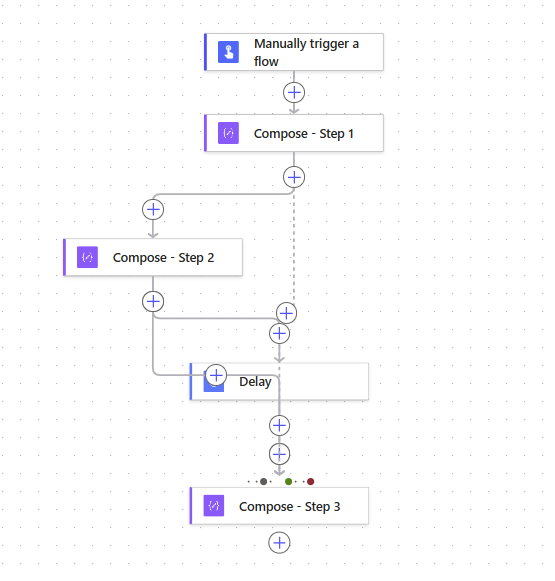
So just to repeat my warning at the beginning of this post. Be very careful using run after settings, especially when they depend on multiple actions. That includes if you are editing with the Classic Designer. The classic Try-Catch pattern is still the preferred way to handle exceptions.

forum Discussion (0 comments)
Join the Discussion
Login to share rich-text comments and reply to other members.
No comments yet. Be the first to share your thoughts!