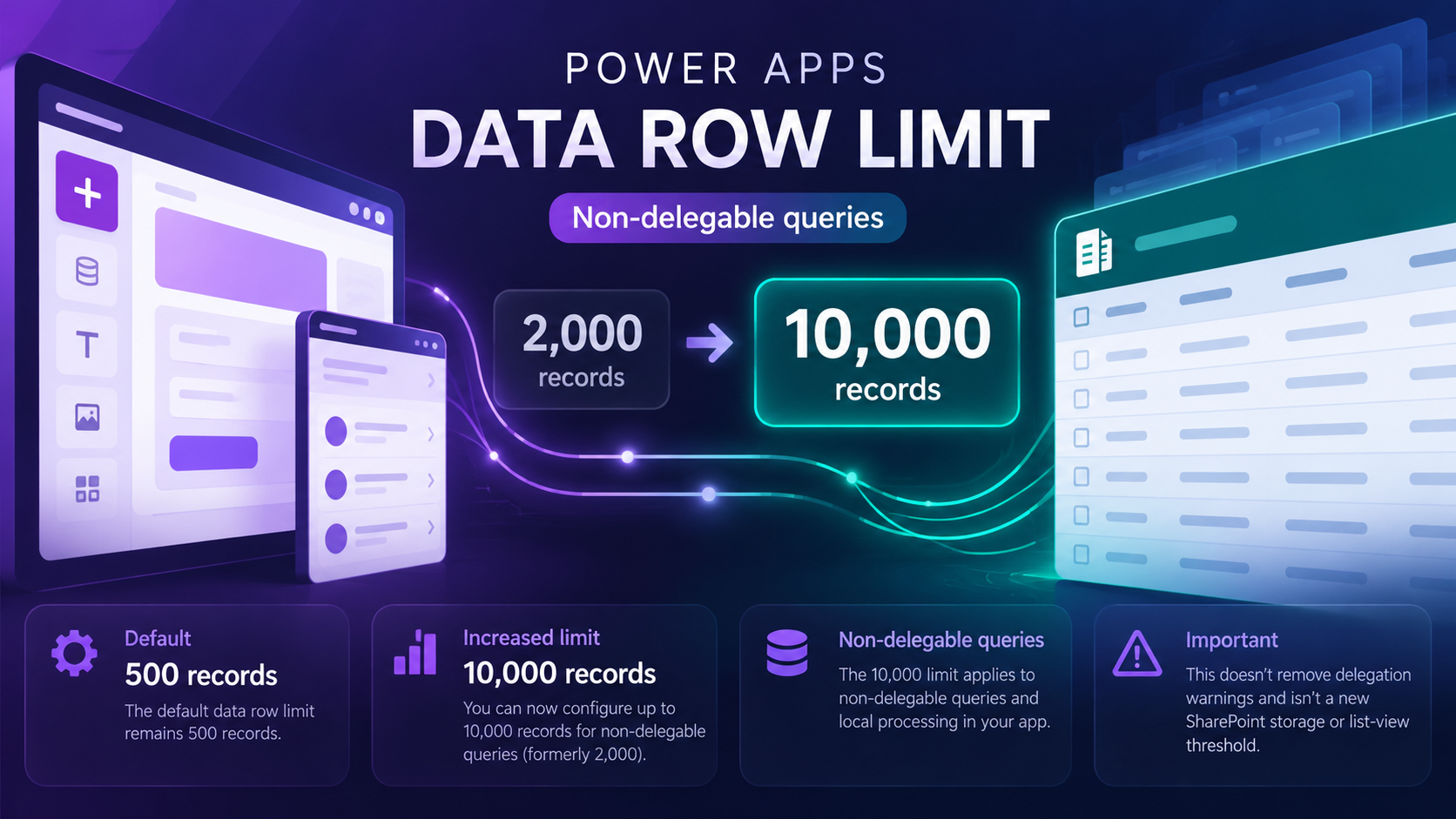
“A SharePoint list has thousands of items. Your Power Apps gallery looks fine—but the record you need isn’t there. The row limit may be part of the answer, but delegation is the bigger story.”
You open a Power Apps screen connected to SharePoint. A colleague searches for an older service request. Nothing appears—even though the request is still in the list. Until now, makers often raised the non-delegable data row limit from its default of 500 to a maximum of 2,000, then hit the same problem as the list grew.
Microsoft’s updated Power Apps documentation now lists a configurable maximum of 10,000 records for non-delegable queries. That creates more room for limited local processing. But it doesn’t turn every SharePoint search into a complete, scalable query.
Key Takeaways
- New documented maximum: 10,000 records for non-delegable queries, compared with the previous 2,000 maximum.
- Default stays the same: 500 records unless you change the app setting.
- Where to configure it: Power Apps Studio → Settings → General → Data row limit.
- Delegation still matters: a non-delegable query can miss records beyond its fetched subset.
- SharePoint is unchanged: the Power Apps setting does not remove SharePoint’s 5,000-item list-view threshold.
- Verify your environment: some older Microsoft pages and product screenshots still show 2,000; confirm that your app accepts 10,000 before depending on it.
Why 2,000 Wasn’t Enough for Growing SharePoint Apps
Imagine a help-desk application with 18,000 items in a SharePoint list. The gallery uses a non-delegable expression to look for any word in the Title column. With a 2,000-row setting, only a subset is checked locally. A matching record outside that subset simply does not appear. Raising the cap to 10,000 extends the subset—but it still cannot guarantee a match in all 18,000 items.
 Before and after: the configurable maximum changes, while the default remains 500.
What Changes for Your Team
- More flexibility for small-to-medium slices: a bounded non-delegable calculation can process more downloaded records.
- Fewer immediately missing results in some apps: a result after row 2,000 may become available if it falls inside the larger retrieved subset.
- More performance responsibility: transferring and evaluating thousands of rows can be slower, especially with many columns.
- Same need for reliable design: production search, approvals and reporting should still use supported delegable formulas.
How to Set the Power Apps Data Row Limit to 10,000
Step 1 Open Power Apps Studio, find your canvas app and select Edit.
Step 2 Open Settings and select General.
Step 3 Find Data row limit. Its default is usually 500.
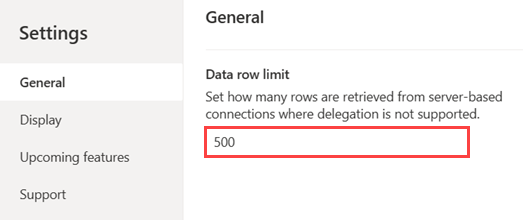 Actual Microsoft Learn screenshot: the Data row limit field shows the default 500. This is an older screenshot and does not demonstrate a tenant accepting 10,000. Source: Microsoft Learn.
Step 4 Enter 10000 if your environment accepts it. The number is a cap, not a requirement to fetch 10,000 rows on every query.
 Illustrative configuration guide—not a live Power Apps screenshot.
Step 5 Save the app, publish the latest version when ready, and test the relevant screens with realistic list data.
Compatibility note: Microsoft’s delegation article updated October 7, 2026 documents 10,000, while an older Azure Data Explorer tutorial still describes 2,000. If Power Apps Studio rejects 10,000, do not treat the documentation change as proof your environment supports it yet.
Connect a SharePoint List and Test the Difference
Use the following example to reproduce the issue on a test list. Suppose your SharePoint list is named Service Requests, with the standard Title text column.
Step 1 In Power Apps Studio, go to Data → Add data → Connectors → SharePoint.
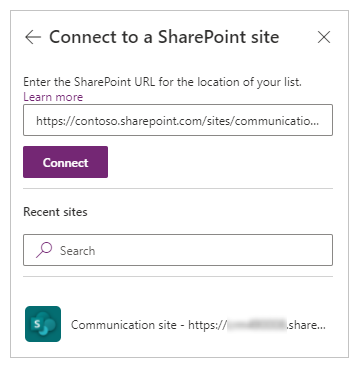 Microsoft Learn screenshot: choose SharePoint from the connector list. Source: Connect to SharePoint from a canvas app.
Step 2 Choose your SharePoint site, select the Service Requests list and select Connect.
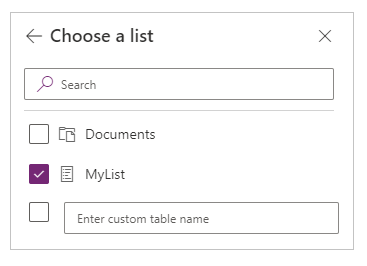 Microsoft Learn screenshot: choose a SharePoint list. The sample name shown in Microsoft’s screenshot is not the list name in this tutorial. Source: Microsoft Learn.
Step 3 Insert a Vertical gallery named galRequests and a Text input named txtSearch.
Step 4 To illustrate a non-delegable contains search, set the gallery’s Items property to:
Filter(
    'Service Requests',
    txtSearch.Text in Title
)
Before: This searches for matching text anywhere in Title, but the SharePoint connector cannot delegate this particular substring test. With the default cap, Power Apps can miss matching items after its first 500 retrieved records.
Step 5 Replace that formula with a delegable prefix search:
Filter(
    'Service Requests',
    StartsWith(Title, txtSearch.Text)
)
After: SharePoint can evaluate this prefix filter on the Title text column. Power Apps retrieves matching rows as needed instead of first downloading a fixed initial subset. Note the behavior change: StartsWith only matches the beginning of Title, not text anywhere inside it.
 Illustration: delegation filters records on the server; non-delegable expressions evaluate a limited retrieved subset locally.
Step 6 Review the formula bar and the App checker for delegation warnings. Test a record beyond the first 10,000 items to confirm your important gallery search still returns it when you use a delegable formula.
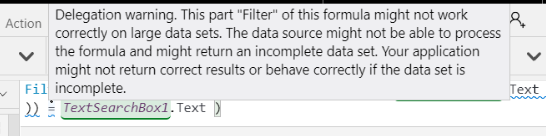 Microsoft Learn example of a delegation warning. It is not a screenshot from this sample SharePoint app. Source: Delegation and query limits.
Real-World Examples for Power Apps and SharePoint Teams
1. Service requests across multiple departments
Setup: 15,000 requests in SharePoint; staff search by title.
Before: A contains search evaluates the initial subset and may skip a valid request.
Better approach: Use delegable title-prefix filtering with indexed SharePoint columns where appropriate. Consider a richer search service if users must find phrases anywhere in long text.
Impact: More trustworthy search without pretending 10,000 means unlimited results.
2. HR onboarding checklist
Setup: A growing list of onboarding tasks needs a filtered employee or status view.
Before: A large collection might silently omit tasks when populated with non-delegable operations.
Better approach: Filter server-side by supported fields and only collect the targeted working set.
Impact: Fewer missing checklist items and less local data transfer.
3. Inventory management for field teams
Setup: A SharePoint list of thousands of assets, grouped by location and status.
Before: A maker increases the row limit to compensate for a non-delegable gallery formula.
Better approach: Use delegable equality filters on supported columns, indexed views and only necessary fields.
Impact: Faster screens and more predictable results as inventory grows.
4. Approval and compliance records
Setup: A screen must find old approvals for an audit.
Before: A non-delegable lookup can show “not found” even when the SharePoint item exists.
Better approach: Use delegable matching criteria and validate results against the underlying data source.
Impact: Reduces the risk of interpreting incomplete query results as missing evidence.
Three Limits Developers Should Not Confuse
| Limit | What it means | Does 10,000 remove it? |
|---|---|---|
| 500 (default) | Starting cap for non-delegable local processing | You can change it |
| 10,000 (documented maximum) | Maximum configured cap for non-delegable queries | This is the setting |
| SharePoint 5,000-item view threshold | Threshold for certain SharePoint list operations and queries | No |
Best Practices Before Raising the Limit
- Fix delegation warnings first; higher row caps are not a substitute for correct server-side query behavior.
- Index the SharePoint columns frequently used for filtering in large lists, and verify the filters can be delegated.
- Avoid loading all records into
ClearCollectsimply to enable local search. - Test on the actual devices and network conditions your users have, not only on a developer laptop.
- For a useful test, temporarily set the limit to
1; a non-delegable query becomes obvious because it sees very few records. Restore your required setting after debugging. - When broad full-text searching, complex relationships or large reporting workloads are central, evaluate Dataverse or a dedicated search/query architecture.
Frequently Asked Questions
Does the new limit mean SharePoint lists can contain only 10,000 items?
No. SharePoint lists can contain substantially more items. The Power Apps setting controls a client-side processing cap for non-delegable queries.
Will increasing the setting fix every missing gallery item?
No. A result outside the fetched subset can still be missed. Delegation is the preferred fix for scalable search and filtering.
Is 10,000 already available in every Power Apps tenant?
Microsoft’s current delegation documentation specifies 10,000, but older documentation still mentions 2,000. Verify the maximum accepted by the settings field in your own environment.
Should I set every app to 10,000?
No. Larger result sets can affect startup time, memory usage and responsiveness. Increase it only when the workload justifies it.
A Bigger Limit, but Delegation Still Wins
The new documented 10,000-record setting gives Power Apps makers additional flexibility. Yet the best production apps still let SharePoint, Dataverse or SQL Server do the work they support. The biggest developer win is not loading more data onto the device—it is making sure the app returns the right data every time.
More rows help. Delegation makes the results dependable.
- Microsoft Learn — Query limitations: Delegation and query limits (last updated October 7, 2026)
- Microsoft Learn — Connect to SharePoint from a canvas app (last updated October 16, 2026)
- Microsoft Learn — Power Apps row-limit screenshot (an older tutorial that still mentions 2,000)
- Microsoft Learn — SharePoint list threshold guidance
Original illustrated diagrams: Power Vision. Microsoft Learn product screenshots: Microsoft documentation, linked to their original image files with attribution. Review Microsoft’s reuse guidance before rehosting screenshots.
Published by Power Vision — practical Power Apps, Power Automate, Dataverse and SharePoint development insights.


forum Discussion (0 comments)
Join the Discussion
Login to share rich-text comments and reply to other members.
No comments yet. Be the first to share your thoughts!