If you've ever built a Power Apps Canvas App and noticed that search results are incomplete, filters return unexpected data, or users can't find records that you know exist, you've likely encountered one of the most common challenges in Power Apps: Delegation.
Delegation is often overlooked during development, especially when working with small datasets. However, as your application grows and starts handling thousands of records, delegation can become the difference between a reliable business application and one that silently returns incorrect results.
Let's explore what delegation is, why it matters, and how to solve common delegation issues.
What Is Delegation?
Delegation is the process where Power Apps sends data operations—such as filtering, sorting, and searching—to the data source instead of processing the data locally within the app.
When a query is delegable:
Power Apps sends the request to the data source.
The data source performs the operation.
Only the required records are returned.
For example, if your SharePoint list contains 100,000 records and you're searching for a specific customer, SharePoint performs the search and returns only the matching records.
This approach is fast, efficient, and scalable.
What Happens When Delegation Fails?
When Power Apps cannot delegate a function, it downloads only a limited number of records and processes them locally.
By default:
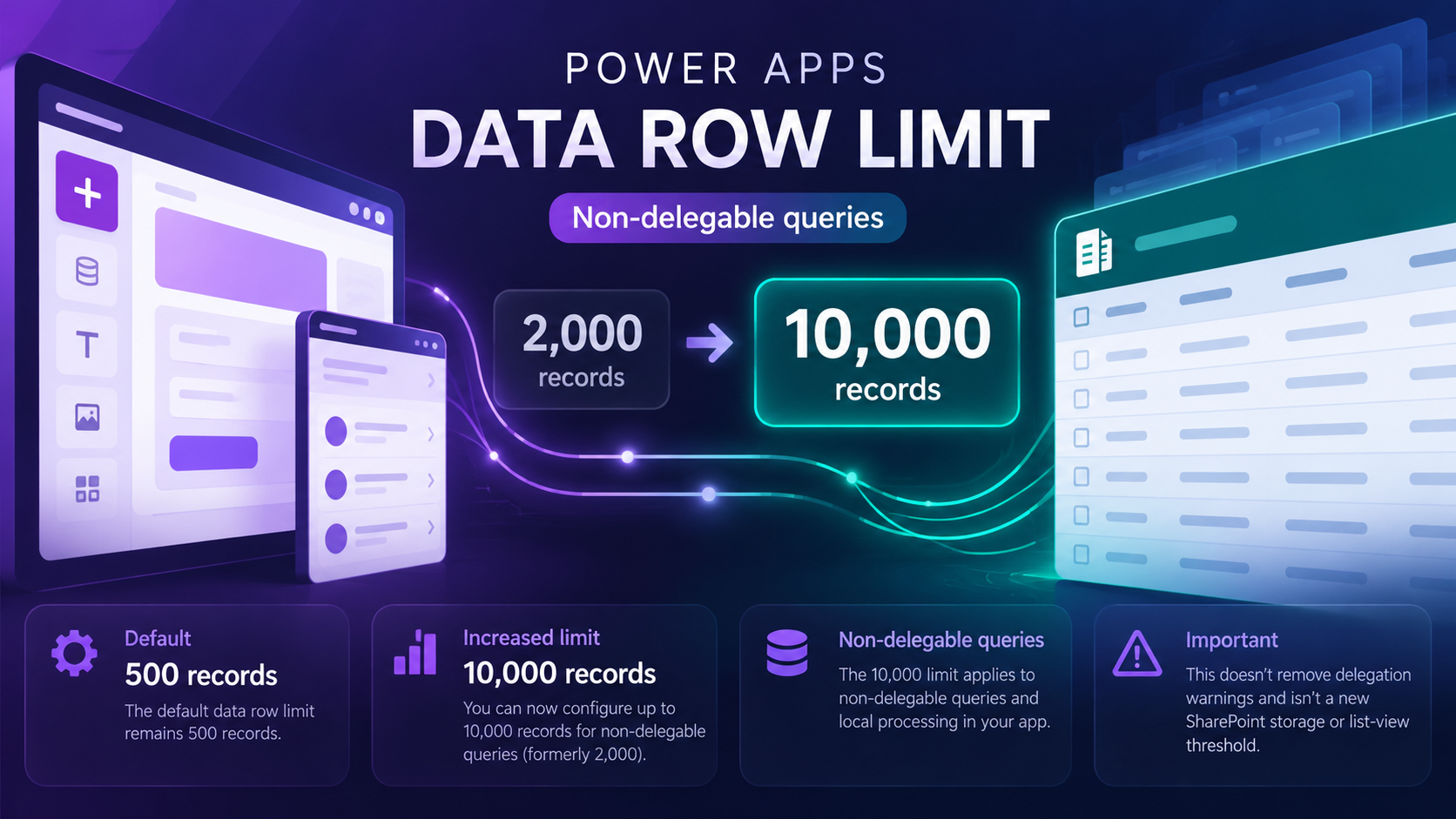
500 records are retrieved.
This limit can be increased to 2,000 records.
However, even at 2,000 records, the remaining records are ignored.
Imagine a SharePoint list containing 20,000 records. If the record you're looking for exists at position 10,000, Power Apps may never find it because it only evaluates the first 2,000 records.
This leads to inaccurate search results, missing data, and frustrated users.
How to Identify Delegation Issues
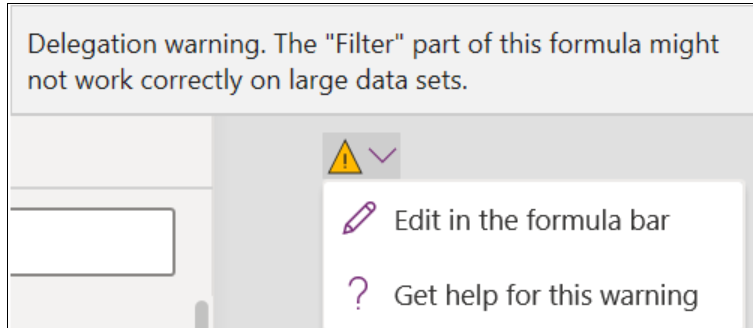
Power Apps helps identify delegation problems by displaying a yellow warning underline beneath formulas.
For example:
Filter(
    Customers,
    Lower(CustomerName) = Lower(TextInput1.Text)
)
You may see a delegation warning because the Lower() function is not fully delegable for many data sources.
Ignoring these warnings can lead to significant issues once your application is deployed.
Common Delegation Problems
Problem #1: Using Non-Delegable Functions
Functions such as:
Lower()
Upper()
Proper()
Len()
Left()
Right()
Mid()
are frequently non-delegable depending on the data source.
Example
Filter(
    CustomerList,
    Lower(Title) = Lower(txtSearch.Text)
)
This may trigger a delegation warning.
Fix
Store data consistently or use direct comparisons:
Filter(
    CustomerList,
    Title = txtSearch.Text
)
Whenever possible, avoid transforming data during filtering.
Problem #2: Using Search on Large SharePoint Lists
Many developers use:
Search(
    CustomerList,
    txtSearch.Text,
    Title
)
While convenient, Search may create delegation limitations depending on the connector and scenario.
Fix
Use StartsWith instead:
Filter(
    CustomerList,
    StartsWith(
        Title,
        txtSearch.Text
    )
)
StartsWith() is delegable for SharePoint and many other connectors, making it a preferred alternative.
Problem #3: Complex Calculations Inside Filters
Developers often write formulas like:
Filter(
    Orders,
    Quantity * Price > 1000
)
Since the calculation occurs inside the filter, Power Apps may not delegate the operation.
Fix
Move calculations to the data source whenever possible.
Examples include:
SharePoint calculated columns
Dataverse calculated fields
SQL computed columns
Then filter against the stored value:
Filter(
    Orders,
    TotalAmount > 1000
)
Problem #4: Using Collections to Store Large Data Sources
Many apps load data into collections:
ClearCollect(
    colCustomers,
    CustomerList
)
Collections are not delegable.
If your source contains more than 2,000 records, the collection will not contain all records.
Fix
Query data directly from the source whenever possible:
Filter(
    CustomerList,
    Status = "Active"
)
Avoid loading entire data sources into collections unless absolutely necessary.
Problem #5: Filtering on Lookup and Complex Columns
SharePoint lookup columns can sometimes create delegation issues.
Example
Filter(
    Projects,
    Department.Value = "IT"
)
Depending on the connector and column type, delegation may be affected.
Fix
Consider:
Using Dataverse for complex relationships.
Storing searchable values in standard text columns.
Simplifying lookup structures when scalability is required.
Best Practices for Avoiding Delegation Issues
1. Design for Scale from Day One
Even if your list currently contains only 100 records, design as if it will eventually contain 100,000.
Applications that scale well today will save significant redevelopment effort later.
2. Learn Your Data Source's Delegation Capabilities
Different connectors support different delegable functions.
For example:
| Function | SharePoint | Dataverse | SQL Server |
|---|---|---|---|
| Filter | ✔ | ✔ | ✔ |
| Sort | ✔ | ✔ | ✔ |
| StartsWith | ✔ | ✔ | ✔ |
| Search | Limited | ✔ | Depends |
| Lower | ✖ | Limited | Depends |
Always consult the delegation documentation for your connector.
3. Use Dataverse for Enterprise Applications
While SharePoint works well for many solutions, Dataverse offers superior delegation support, performance, security, and scalability.
Applications expected to handle large datasets should strongly consider Dataverse.
4. Watch for yellow Underlines
Treat delegation warnings as production issues—not suggestions.
Fix them early before users begin experiencing data inconsistencies.
5. Filter Early
Instead of retrieving all records:
CustomerList
Retrieve only what users need:
Filter(
    CustomerList,
    Status = "Active"
)
Reducing the dataset improves performance and user experience.
Real-World Example
Imagine an employee directory app connected to a SharePoint list containing 50,000 employees.
A developer uses:
Search(
    Employees,
    txtSearch.Text,
    FullName
)
The app works perfectly during testing because the list contains only a few hundred records.
Months later, after migrating company-wide data, employees report that searches fail to find certain users.
The issue isn't the data—it's delegation.
Replacing the search with:
Filter(
    Employees,
    StartsWith(
        FullName,
        txtSearch.Text
    )
)
allows SharePoint to execute the query and return accurate results regardless of list size.
Conclusion
Delegation is one of the most critical concepts every Power Apps developer must understand. Applications may appear to work correctly during development but fail silently as data grows.
By recognizing delegation warnings, using delegable functions, filtering data efficiently, and choosing the right data source, you can build applications that remain accurate, responsive, and scalable for years to come.
The next time you see a yellow underline in Power Apps, don't ignore it—it might be saving your app from future problems.


forum Discussion (0 comments)
Join the Discussion
Login to share rich-text comments and reply to other members.
No comments yet. Be the first to share your thoughts!