Double Maximum Collection Size To 4,000 Rows
Power Apps can only load 2,000 records into a collection using the ClearCollect function but one of my fellow super users on the community forums @Drrickryp came up with a simple technique to double the limit. Here’s an example of how it works: the SharePoint list below called Car Inventory has 3,000 records.
| ID | Title | CarYear | CarMake | CarModel |
| 1 | 2009 Dodge Ram | 2009 | Dodge | Ram |
| 2 | 2013 Honda Accord | 2013 | Honda | Accord |
| 3 | 2012 Ford Focus | 2012 | Ford | Focus |
| 4 | 2016 Toyota Corrola | 2016 | Toyota | Corrola |
| 5 | 2018 Chevrolet Silverado | 2018 | Chevrolet | Silverado |
| … | … | … | … | … |
| 3000 | 2015 Nissan Sentra | 2015 | Nissan | Sentra |
We can use this Power Apps code in the OnSelect property of a button to load 2 temporary collections with data from SharePoint list into a single collection and then remove then duplicates. This code works because the row limit for ClearCollect only applies when loading data from a datasource, not local data in memory. When we check the row count for the colCars collection we see that it contains all 3,000 records!
Concurrent(
    ClearCollect(
         colCarsChunk1,
         Sort('Car Inventory', ID, Ascending)
     ),
     ClearCollect(
         colCarsChunk2,
         Sort('Car Inventory', ID, Descending)
     )
);
ClearCollect(
    colCars,
    colCarsChunk1,
    Filter(colCarsChunk2, Not(ID in colCarsChunk1.ID))
);
Clear(colCarsChunk1);
Clear(colCarsChunk2);Code language: JavaScript (javascript)
Collect Data In Chunks With For All Loops
A ForAll function can be used to collect several sets of rows from a datasource that match a list of supplied values. The only limitation is each individual set cannot exceed 2,000 rows. For example, using the Car Inventory SharePoint list and the ForAll function as shown below I can store all rows where the CarMake equals Ford, Dodge or Toyota in a single collection. The rows collected for Ford, Dodge or Toyota cannot be greater than 2,000 rows for each CarMake but the total size of the collection can exceed 2,000 rows.
Clear(colCars);
ForAll(
    ["Ford", "Dodge", "Toyota"],
    Collect(colCars, Filter('Car Inventory', CarMake=Value))
);Code language: JavaScript (javascript)
This technique is also comes in handy when working with combo boxes. We might have chosen to build an app that allows the user to select multiple car makes just like this.
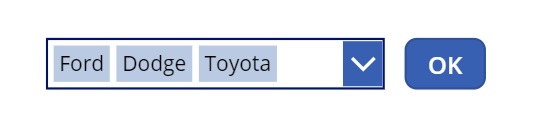
We can make the following changes to our code below and now it will collect all of the results based on values selected by the user in the combo box.
Clear(colCars);
ForAll(
    ComboBox1.SelectedItems.Value,
    Collect(colCars, Filter('Car Inventory', CarMake=Value))
);Code language: JavaScript (javascript)
Get A JSON Response From Power Automate
A Power Automate flow can return over 2,000 records to Power Apps with the HTTP Response action. This technique was pioneer by Power Platform Program Manager Brian Dang. It uses a premium action in the flow so only users with a per app plan or a per user plan will be able to take advantage of it.
Assuming we are using Dataverse instead of a SharePoint list to store the car inventory data…
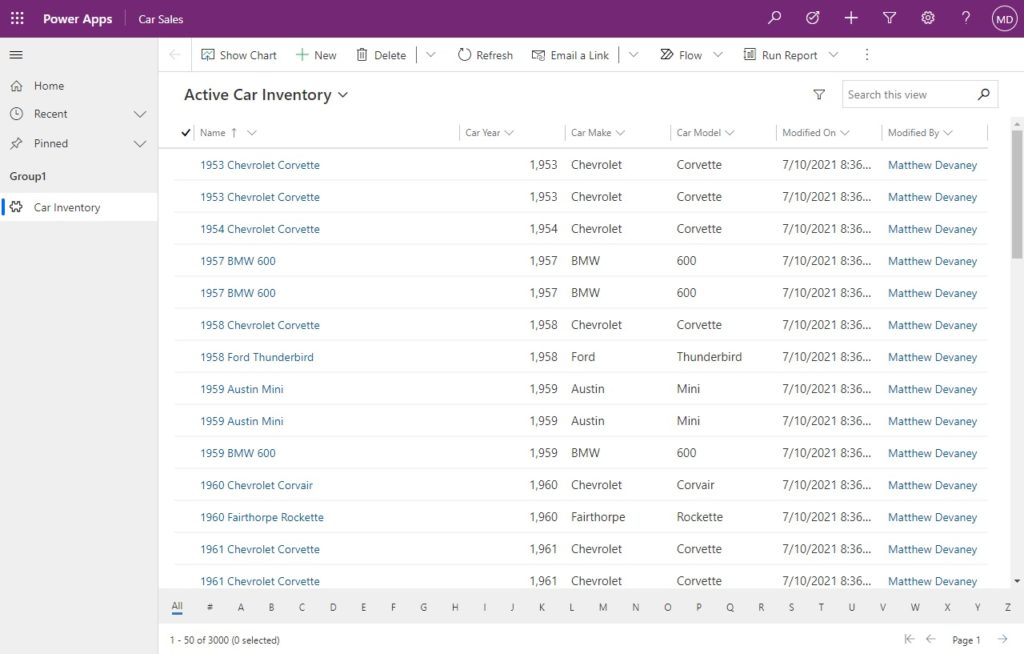
…create a new app, go to the Action tab and select Power Automate. Then create a new flow.
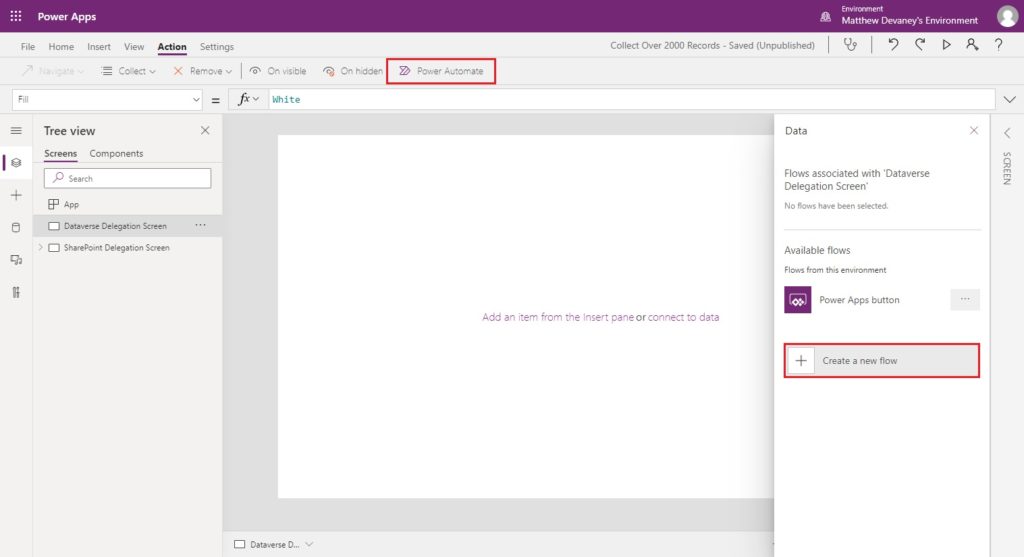
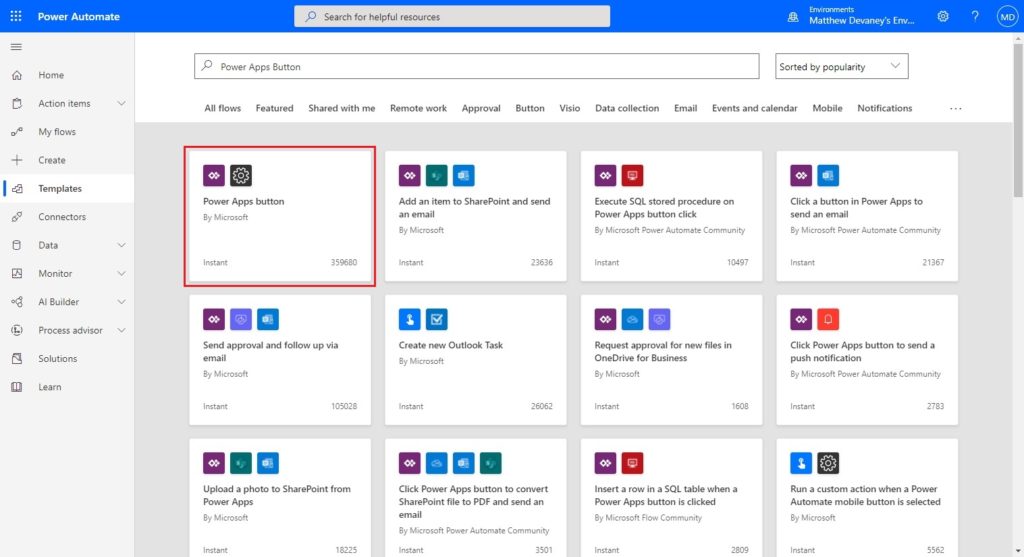
Choose the Power Apps button template.
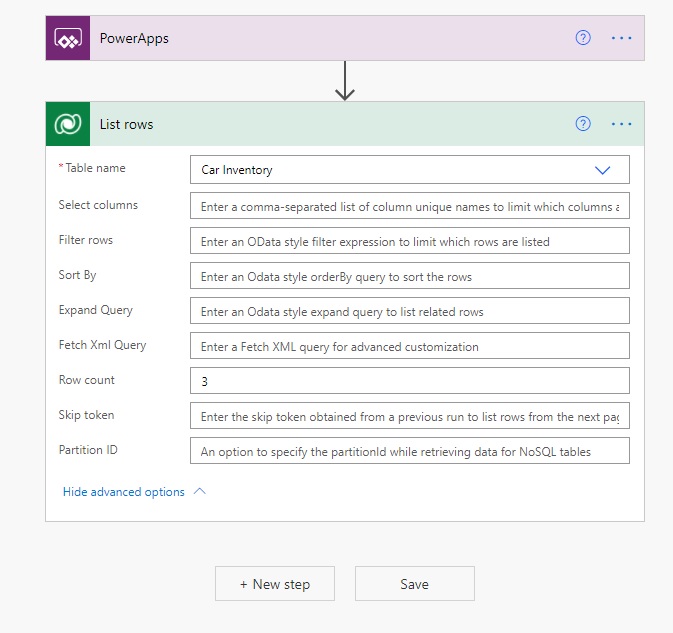
Name the flow Load Car Inventory. Then add a Dataverse – List Rows action. Set the table name to Car Inventory and update the Row Count to 3.
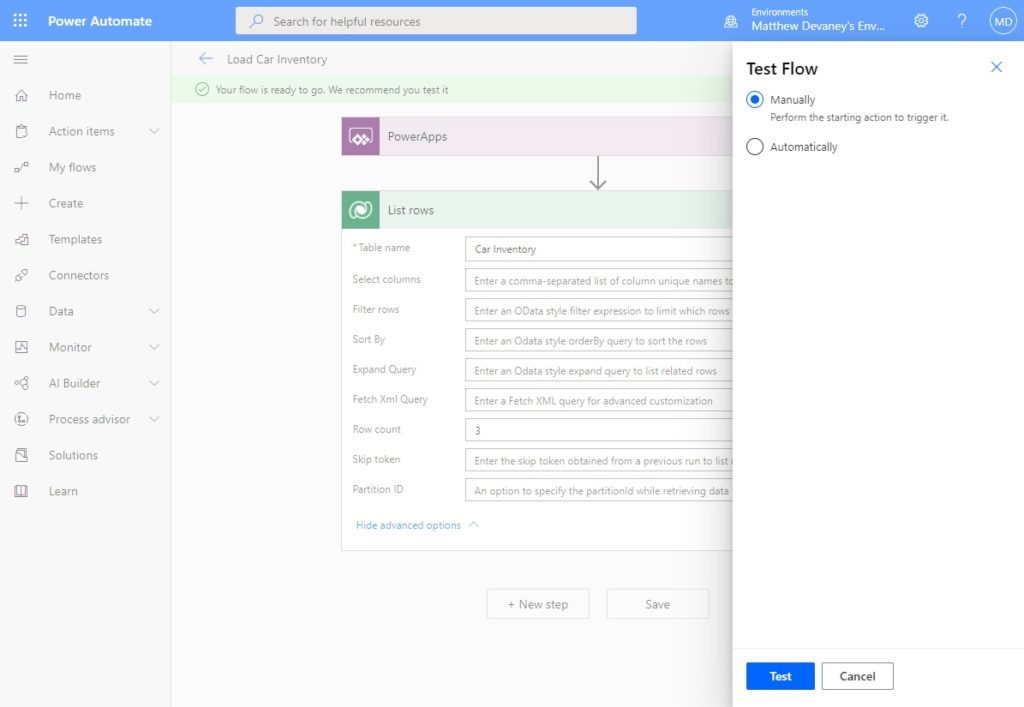
Save and test the flow manually.
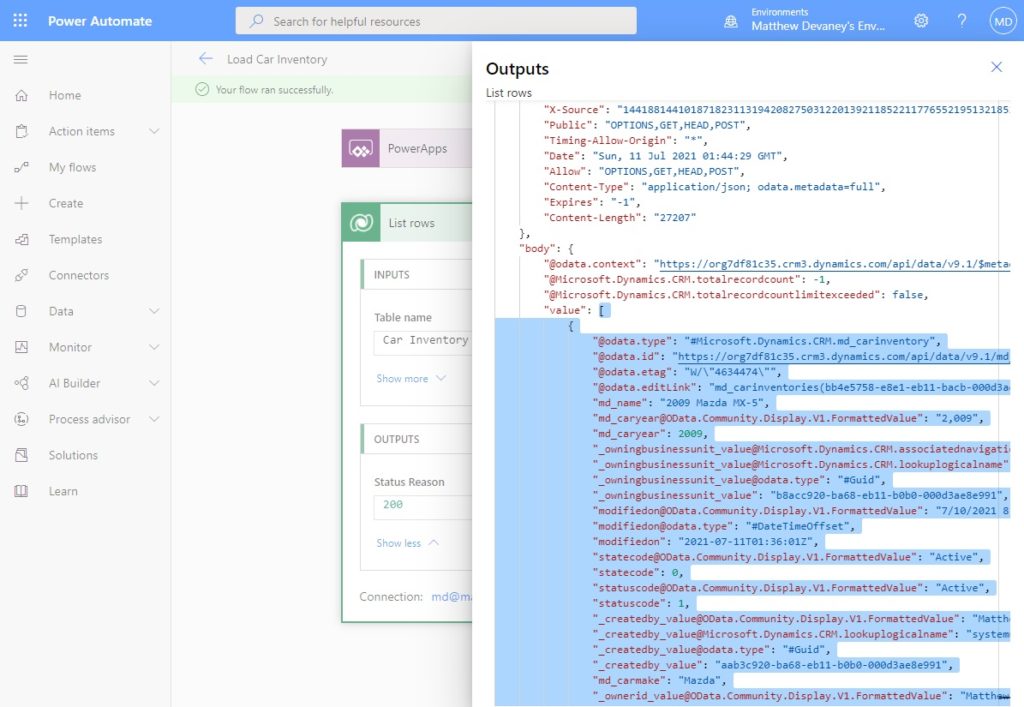
Get the raw outputs for the list rows action. Open the notepad application in Windows and copy the list of objects in the value property (highlighted below) into it. Then close the Outputs menu and click the Edit button to re-open the flow in edit mode.
Remove the row count from the Dataverse – List Rows action. Next, add a Response action with the value of List Rows as the body. Click generate from sample…
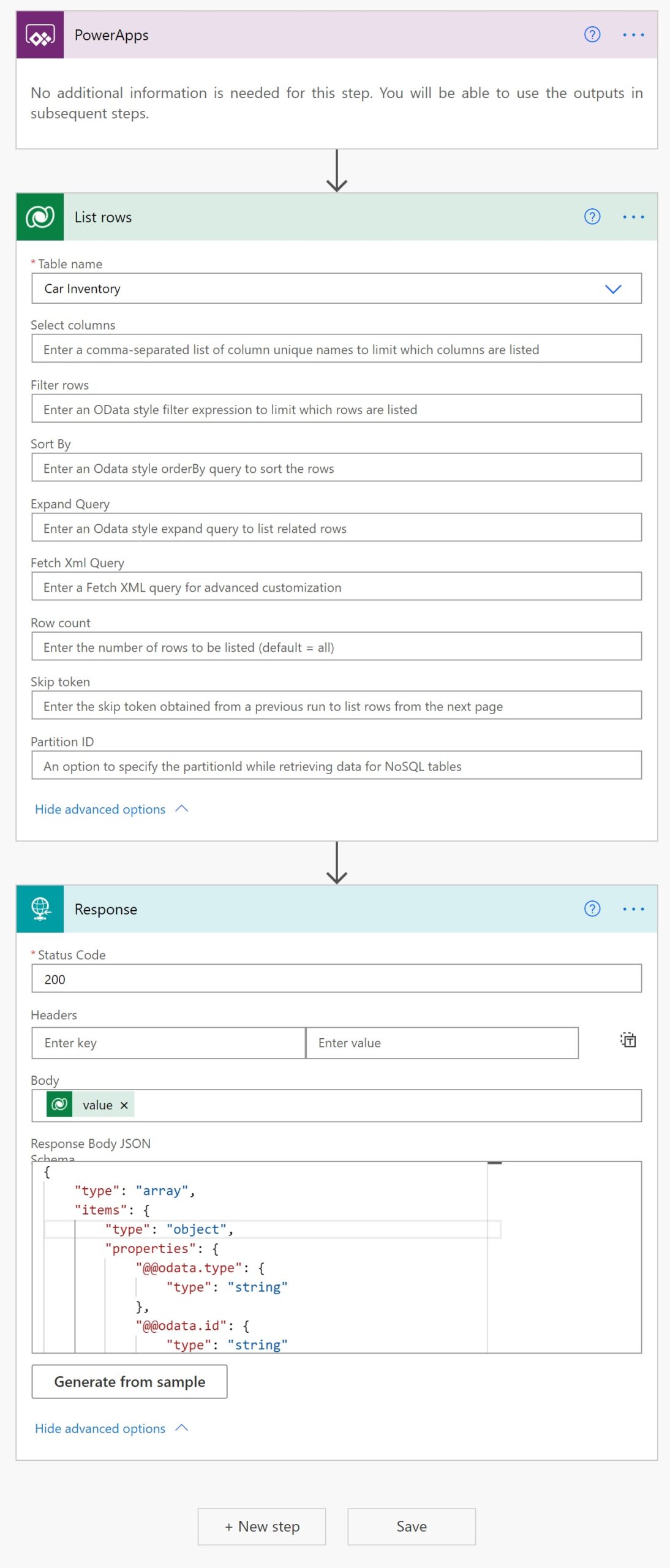
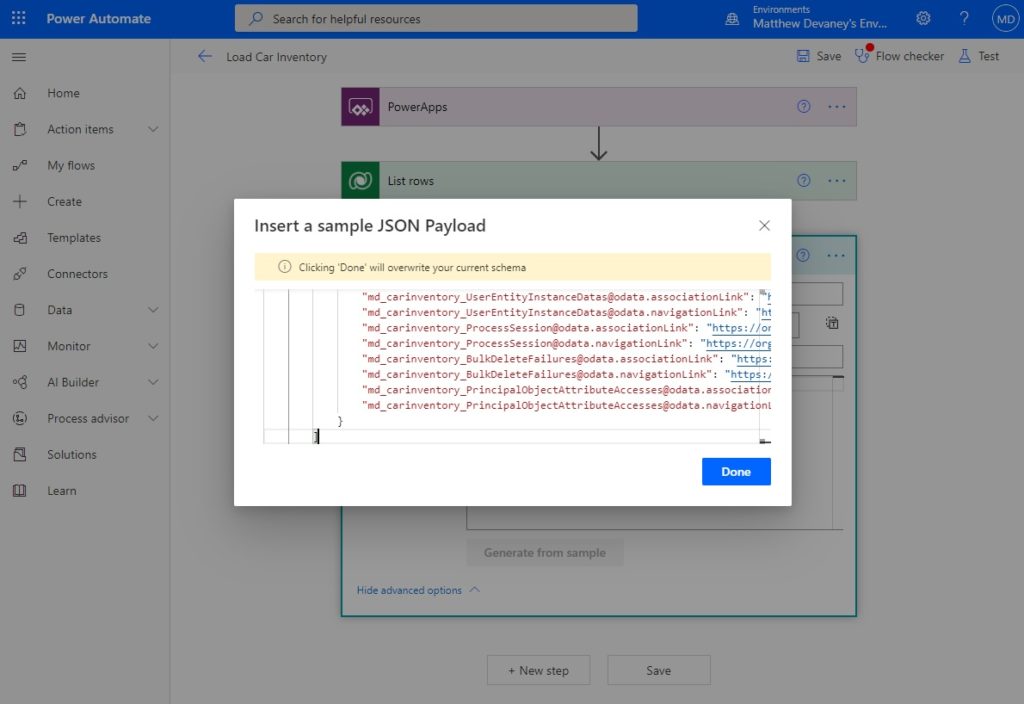
…and copy + paste the list of objects we temporarily stored in notepad into the pop-up menu that appears. Select done then Save the flow.
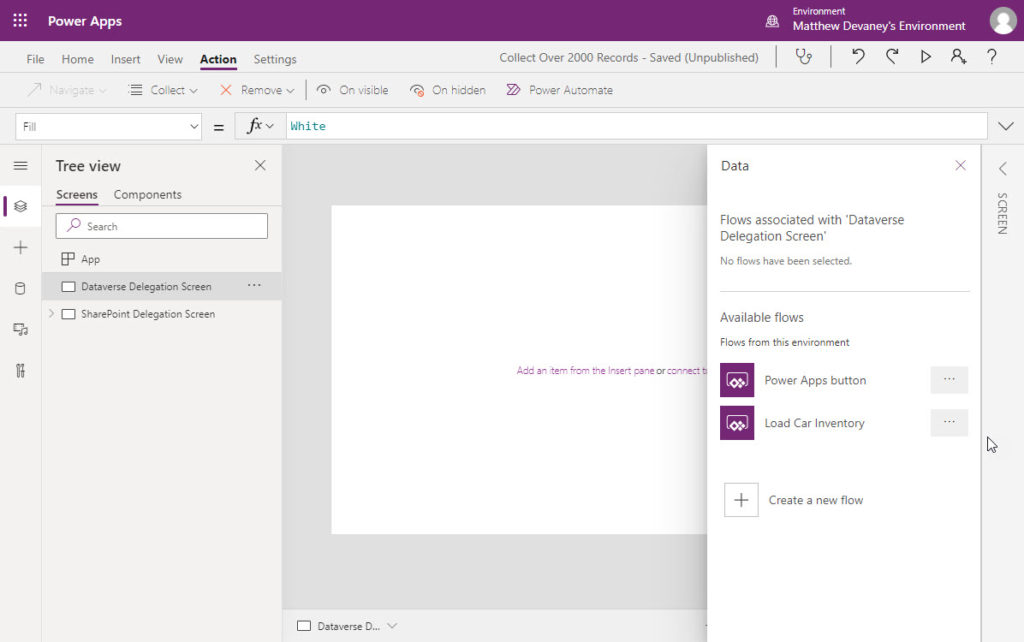
Go back to Power Apps Studio and choose the Load Car Inventory flow to connect it to the app.
Create a new button with the text “Import Data”…
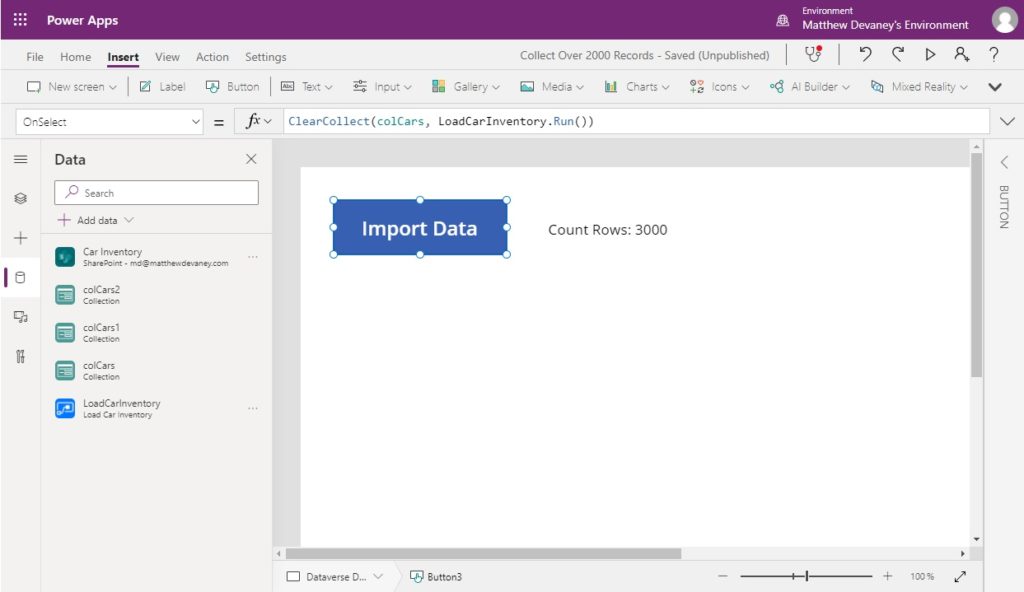
…and use this code in the OnSelect property. Press the button in play mode and it will collect all 3,000 rows from Dataverse even though the delegation limit is only 2,000 rows.
ClearCollect(colCars, LoadCarInventory.Run())Code language: CSS (css)
To check the size of the collection make a label and put this code in the text property.
"Count Rows: "&CountRows(colCars)Code language: JavaScript (javascript)
Add Static Data With The Import From Excel Connector (100,000+ Rows)
The import from excel connector loads data from an Excel spreadsheet directly into an app. Once the Excel spreadsheet is loaded into the app it cannot be edited without being re-imported by the app-maker. Therefore, static data only makes sense when the data is not expected to be changed. Some examples are:
- Localized text in multi-language apps
- A list of valid postal codes
- Words found in a dictionary
For this example, we’ll use a list of 170,399 words found in the Scrabble dictionary.
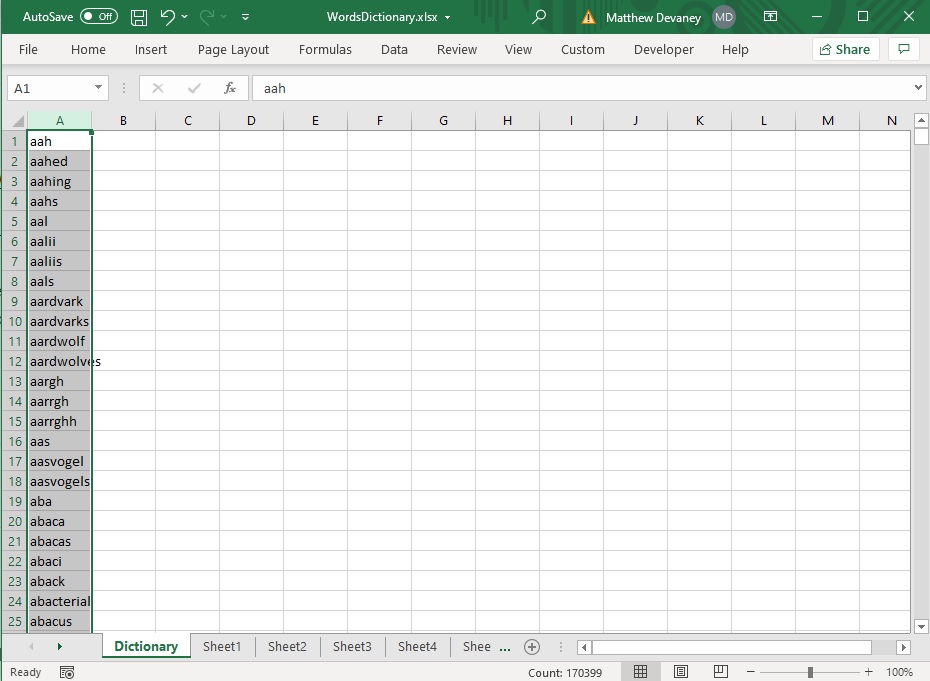
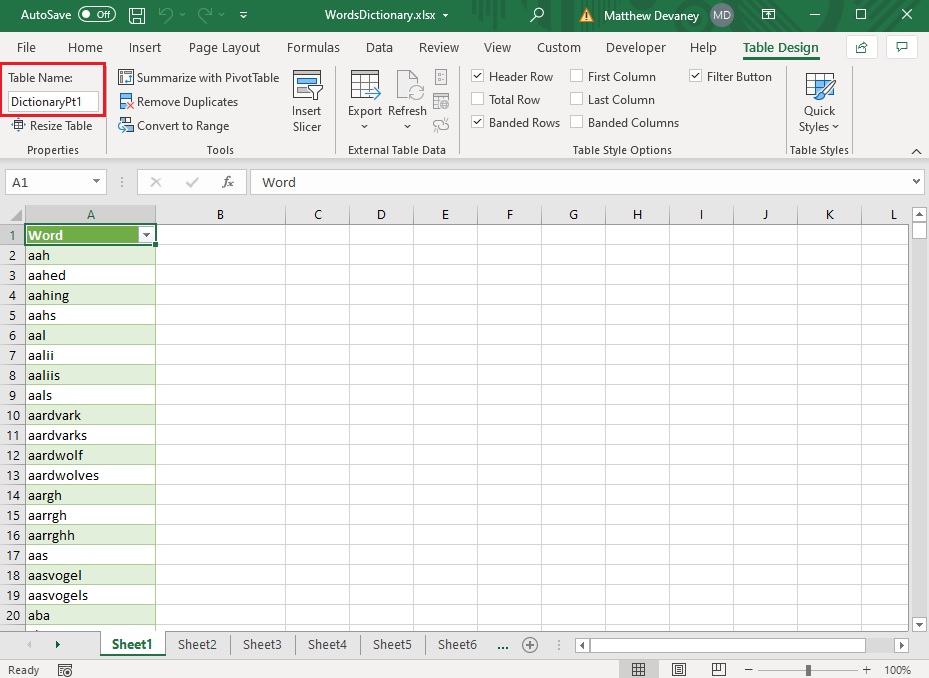
Group the list of words into Excel tables each with 15,000 records or less. This is important because Power Apps cannot read more than 15,000 rows in a table. Give the Excel tables you create a unique name.
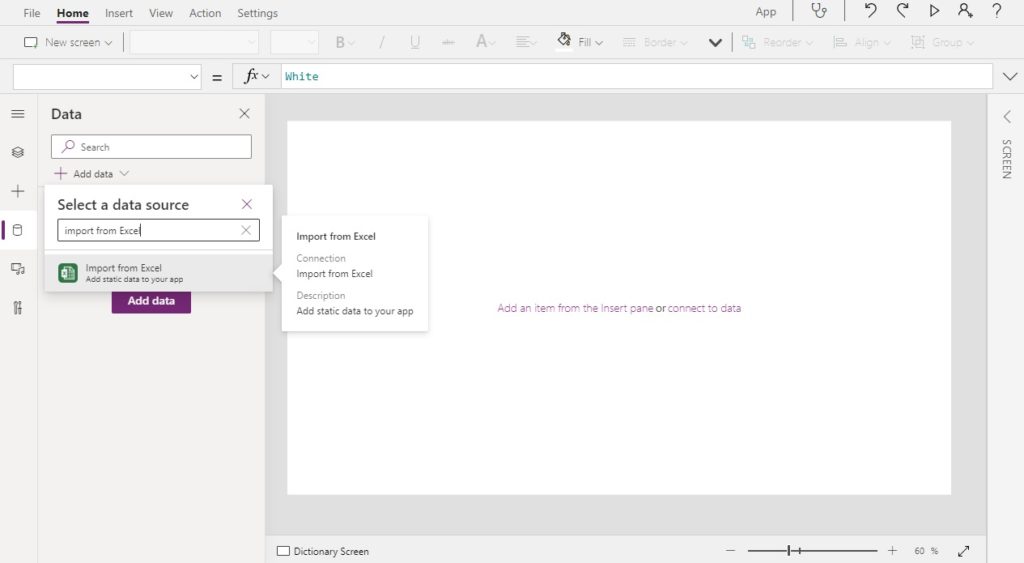
Open Power Apps Studio and add the Import from Excel datasource.
Check all of the Excel tables we created and click Connect.
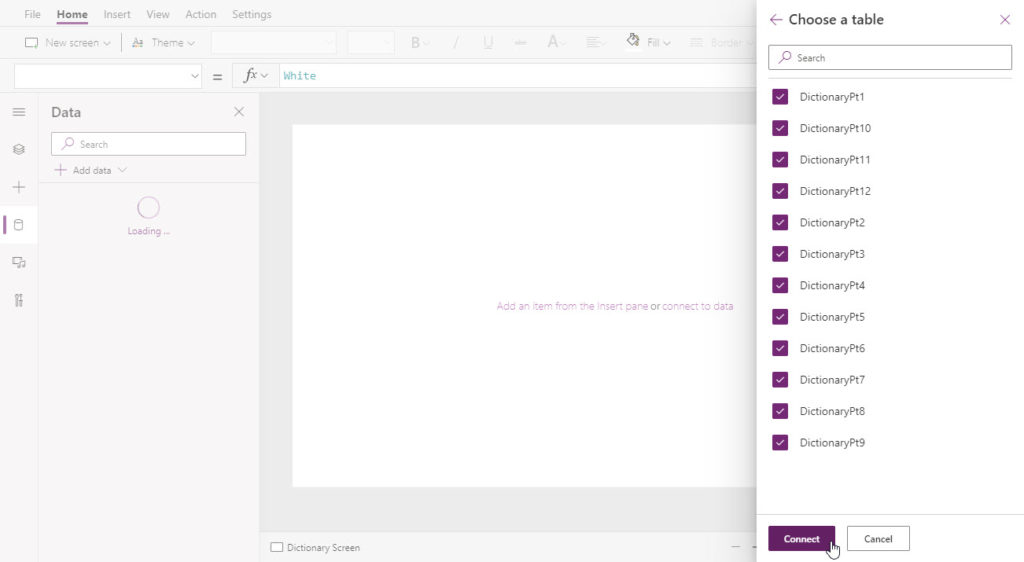
All of the Excel tables will appear as individual datasources.
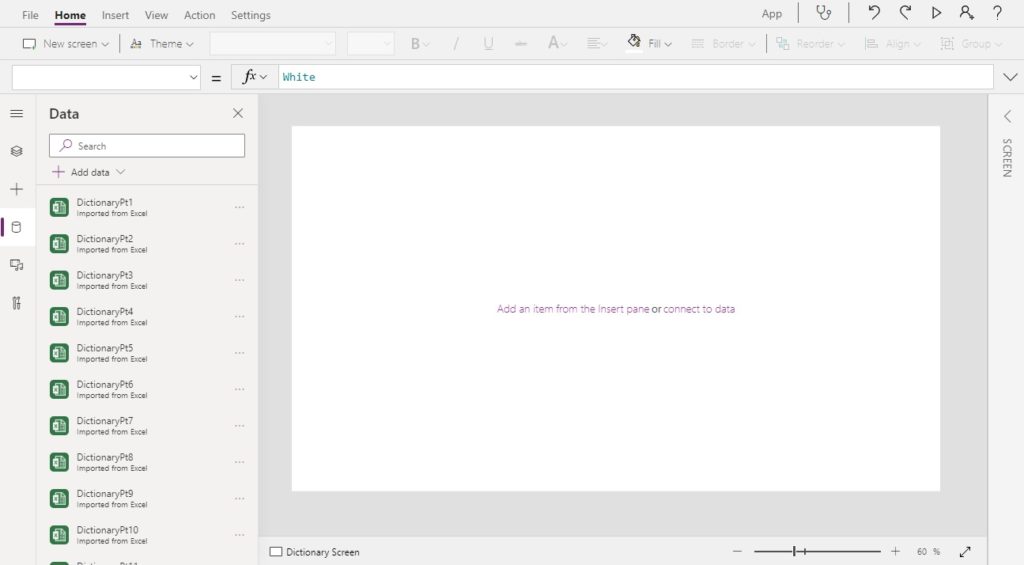
Create a button with the text “Import Data”…
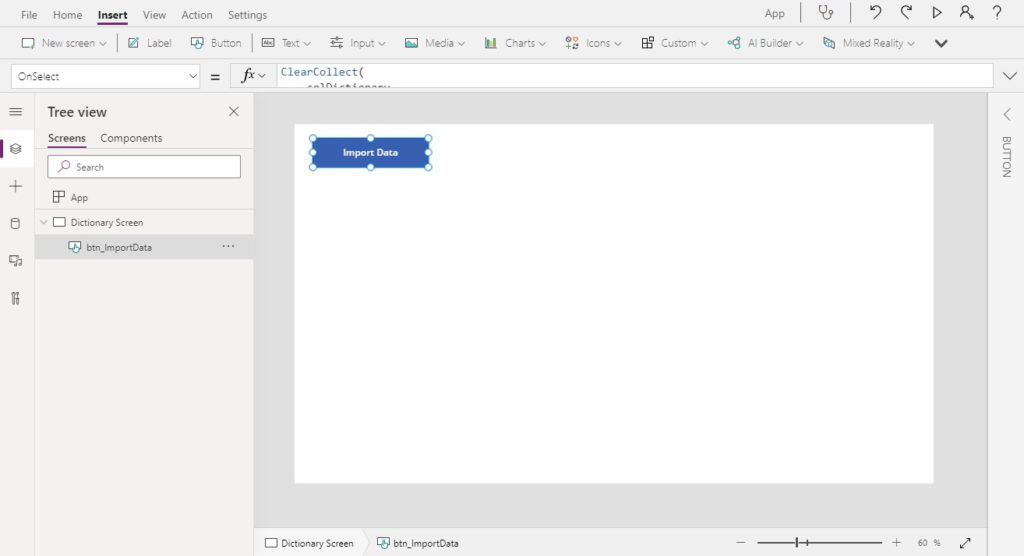
…then use this code in the OnSelect property to collect all of the individual Excel tables into a single collection.
ClearCollect(
     colDictionary,
     DictionaryPt1,
     DictionaryPt2,
     DictionaryPt3,
     DictionaryPt4,
     DictionaryPt5,
     DictionaryPt6,
     DictionaryPt7,
     DictionaryPt8,
     DictionaryPt9,
     DictionaryPt10,
     DictionaryPt11,
     DictionaryPt12
)
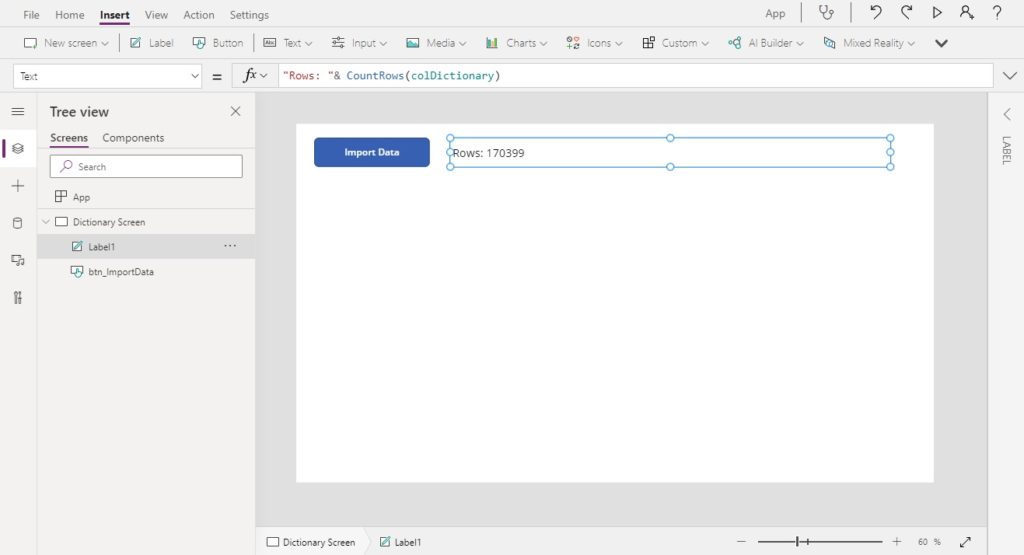
Make a label beside the button and use this code to display the row count of the collection.
"Count Rows: "&CountRows(colDictionary)Code language: JavaScript (javascript)
Then press the button and wait for the collection to load the data. Once its finished we can see that all 170,399 rows were successfully loaded into the collection.


forum Discussion (0 comments)
Join the Discussion
Login to share rich-text comments and reply to other members.
No comments yet. Be the first to share your thoughts!