File
| Shortcut | Action |
|---|---|
| Ctrl+Shift+S (or Alt+P) | Save the app with a different name |
| Ctrl+S | Save the app with the same name or for the first time |
| Ctrl+Shift+P | Save the app and activate the publish dialog |
| F12 | Download the app file (.msapp) |
| Shortcut | Action |
|---|---|
| Enter | Run the selected command |
| Tab | Move between commands on the selected tab, then to the next tab |
| Alt+I | Select the Insert tab |
| Shortcut | Action | |
|---|---|---|
| Ctrl+A | Select all | |
| Ctrl+X | Cut | |
| Ctrl+C | Copy | |
| Ctrl+V | Paste | |
| Ctrl+Z | Undo | |
| Ctrl+Y | Redo | |
| Ctrl+=, Ctrl+Shift+=, or Ctrl+Mouse wheel up | Zoom in | |
| Ctrl+-, Ctrl+Shift+-, or Ctrl+Mouse wheel down | Zoom out | |
| Ctrl+0 | Fit canvas to page | |
| Enter or Shift+Enter | Select a suggestion in a formula without adding a new line (Enhanced formula bar shortcuts is turned off) | |
| Enter | Select a suggestion in a formula and create a new line (Enhanced formula bar shortcuts must be turned on) | |
| Shift+Enter | Create a new line in a formula without keeping the suggestion (Enhanced formula bar shortcuts must be turned on) |
Important
To use keyboard shortcuts for the formula bar, turn on Enhanced formula bar shortcuts. In Power Apps, go to Settings, and then select Power App settings. On the Editing tab, turn on Enhanced formula bar shortcuts.
| Shortcut | Action |
|---|---|
| F5 | Open Preview mode |
| Esc | Close Preview mode, a dialog box, or a flyout pane |
| Shortcut | Action |
|---|---|
| Tab | Select the next control |
| Shift+F11 | Set focus to the inline action bar |
| Hold down Ctrl while selecting or hold down Shift while selecting | Select multiple objects at once |
| Right arrow | Move the selected control to the right |
| Left arrow | Move the selected control to the left |
| Up arrow | Move the selected control up |
| Down arrow | Move the selected control down |
Note
These shortcuts work when the Tree view pane has focus.
| Shortcut | Action |
|---|---|
| F2 | Rename a control |
| Esc | Cancel renaming a control |
| Ctrl+G | Group or ungroup controls |
| Ctrl+] | Bring a control forward |
| Ctrl+[ | Send a control backward |
| Ctrl+Shift+] | Bring to front |
| Ctrl+Shift+[ | Send to back |
| Shortcut | Action |
|---|---|
| Shift+Left arrow | Decrease width |
| Ctrl+Shift+Left arrow | Decrease width slightly |
| Shift+Down arrow | Decrease height |
| Ctrl+Shift+Down arrow | Decrease height slightly |
| Shift+Right arrow | Increase width |
| Ctrl+Shift+Right arrow | Increase width slightly |
| Shift+Up arrow | Increase height |
| Ctrl+Shift+Up arrow | Increase height slightly |
| Shortcut | Action |
|---|---|
| Ctrl+B | Cycle through levels of bold |
| Ctrl+I | Turn italics on or off |
| Ctrl+U | Add or remove underline |
| Shortcut | Action |
|---|---|
| Alt or Ctrl+Shift | 1. Before selecting a control, hide design elements so that you can interact with the controls as the app's user would. 2. After initiating a resize or reposition of a control, holding down these keys overrides any snap points. |
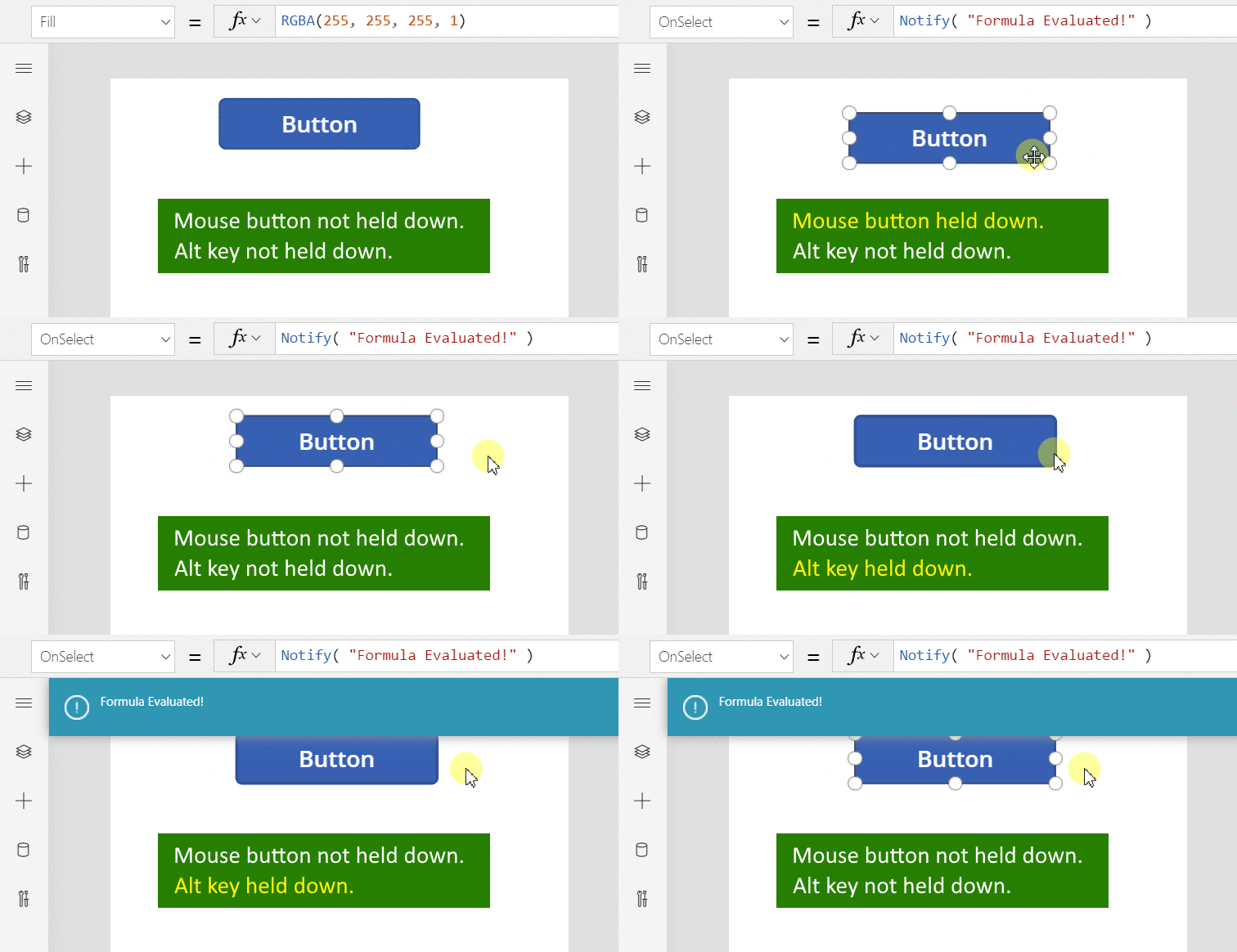
Like an Excel spreadsheet, canvas apps are live and running even when you're editing them. You don't need to switch to preview mode to test your app, so editing and testing are much faster. But this feature creates a challenge: How do you select a button control to resize it instead of selecting it to run the app logic?
When you're in design mode, selecting an object lets you edit it. You can move, resize, change properties, and configure the object. To override this default behavior, hold down the Alt or Ctrl+Shift keys before you select the object. This action treats the selection as if a user of the app selected it.
In the following animation, a button control is first selected for editing. Adorners appear around the control, and the formula bar shows the OnSelect property, ready to edit. After you release the button, hold down the Alt key and select the button control again. This time, the OnSelect property runs, and the notification appears, just like when a user selects the button in a running app.
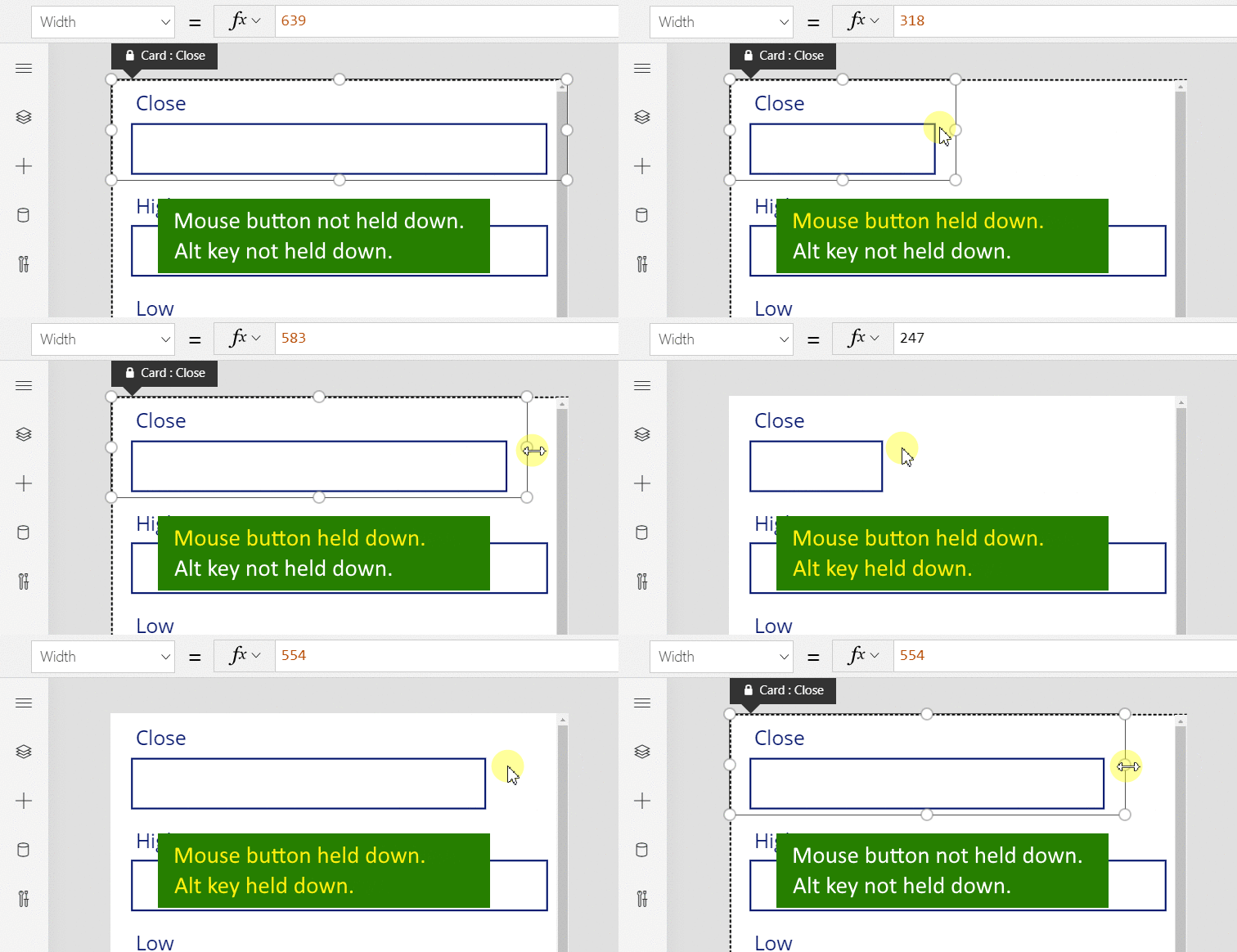
You can also use the Alt key after you select a control to override snap points when moving or resizing. The next animation shows how to resize a data card in an Edit form control. At first, resizing is limited to specific snap points. Later, without releasing the mouse button, hold down the Alt key. This action overrides the snap points, so you can set any width with the mouse.
| Shortcut | Action |
|---|---|
| F1 | Open documentation |
| Ctrl+F6 | Go to the next landmark. It navigates clockwise through the landmarks of a page (for example, headers, navigation bars, main content). Adding the Shift key (Ctrl+Shift+F6) moves through them in counterclockwise order. |
| Ctrl+Shift+F6 | Go to the previous landmark. It navigates in counterclockwise order through the landmarks of a page (for example, headers, navigation bars, main content). |
| Shift+F10 | Open a shortcut menu, for example, in Tree view |



forum Discussion (0 comments)
Join the Discussion
Login to share rich-text comments and reply to other members.
No comments yet. Be the first to share your thoughts!