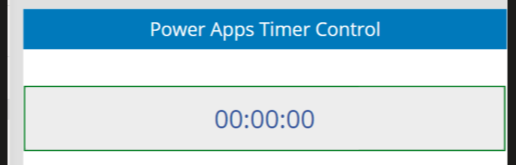
Many Power Apps solutions rely on user interaction to perform actions such as navigating between screens, saving data, or refreshing information. However, there are scenarios where these actions should happen automatically after a certain period of time. This is where the Timer control becomes extremely useful.
The Timer control enables makers to automate time-based actions without requiring users to press buttons or manually trigger events. Whether you're building a splash screen, refreshing data at regular intervals, displaying countdowns, or automatically moving users through a process, the Timer control provides a simple and effective solution.
This article explains how the Timer control works, its key properties, and several practical implementation examples.
What is the Timer Control?
The Timer control is an input control available in Canvas Apps that counts elapsed time in milliseconds. Once the configured duration has been reached, it can execute formulas or trigger application logic automatically.
Unlike a clock, the Timer is event-driven—it performs actions when a specified amount of time has passed.
Common scenarios include:
Splash screens
Session timeout warnings
Auto-navigation
Progress indicators
Automatic data refresh
Delayed notifications
Sequential workflows
Simple animations
Adding a Timer to Your App
Adding a Timer control is straightforward:
Open your Canvas App in Power Apps Studio.
Select Insert.
Choose Input.
Select Timer.
Position the control on your screen.
Once inserted, configure its properties according to your application's requirements.
Essential Timer Properties
Duration
Defines how long the timer runs before completing.
Example:
5000
This represents 5 seconds, since the value is measured in milliseconds.
AutoStart
Automatically starts the timer when the screen becomes visible.
true
Start
Controls whether the timer is actively running.
Example:
varStartTimer
This property is commonly connected to a variable.
Repeat
Determines whether the timer restarts after reaching the end.
true
or
false
Reset
Returns the timer back to zero.
true
or
Reset(Timer1)
OnTimerStart
Runs formulas immediately after the timer begins.
Example:
Notify("Timer Started")
OnTimerEnd
Executes when the timer finishes.
Typical examples include:
Navigate to another screen
Refresh data
Update records
Display notifications
Start another timer
Example:
Navigate(HomeScreen)
Example 1: Creating a Splash Screen
One of the most common uses of a Timer is displaying a welcome screen before opening the main application.
Configuration:
| Property | Value |
|---|---|
| Duration | 3000 |
| AutoStart | true |
| Repeat | false |
OnTimerEnd:
Navigate(HomeScreen)
The user automatically enters the application after three seconds.
Example 2: Countdown Timer
A countdown provides visual feedback for users before an action occurs.
Timer settings:
Duration = 10000
AutoStart = true
Repeat = false
Label Text:
Text(
RoundUp(
(Timer1.Duration-Timer1.Value)/1000,
0
)
) & " seconds"
The label continuously updates until the timer finishes.
Example 3: Progress Bar
A Timer can drive a simple progress animation.
Insert:
Timer
Rectangle
Rectangle Width:
Timer1.Value /
Timer1.Duration *
Parent.Width
As the timer progresses, the rectangle gradually fills the available space.
Example 4: Automatic Data Refresh
Instead of asking users to press a Refresh button repeatedly, the Timer can refresh information automatically.
Configuration:
Duration = 60000
Repeat = true
OnTimerEnd:
Refresh(Employees)
This refreshes the data source every minute.
Example 5: User-Controlled Timer
Sometimes users should decide when the timer starts.
Start Button:
Set(varRun,true)
Stop Button:
Set(varRun,false)
Timer Start property:
varRun
This provides complete control over the timer's execution.
Example 6: Sequential Timers
Complex user experiences sometimes require multiple timed events.
For example:
Display welcome message
Wait 3 seconds
Show instructions
Wait another 3 seconds
Open main screen
Each Timer's OnTimerEnd event can trigger the next step in the sequence.
Best Practices
When working with Timer controls, consider the following recommendations:
Use milliseconds for all duration values.
Disable Repeat unless continuous execution is required.
Control the timer with variables rather than hardcoded values whenever possible.
Avoid extremely short repeating timers, as they may impact app performance.
Keep formulas inside OnTimerEnd concise to maintain responsiveness.
Test Timer behavior in Preview mode before publishing.
Common Business Use Cases
Organizations frequently use Timer controls to support business processes such as:
Customer check-in countdowns
Automatic approval reminders
Dashboard refresh intervals
Manufacturing process monitoring
Training applications
Quiz and examination timers
Kiosk applications
Digital signage
SLA tracking
Guided onboarding experiences
Troubleshooting Tips
If your Timer is not behaving as expected, verify the following:
Ensure the Start property evaluates to true.
Confirm the Duration is specified in milliseconds.
Check that Repeat is configured correctly.
Verify the OnTimerEnd formula contains no errors.
Remember that Timers run in Preview or published apps, not during normal design mode.
Conclusion
The Timer control is a simple yet powerful feature that enables automation within Power Apps. By combining Timer properties with formulas and variables, makers can create more interactive, efficient, and user-friendly applications.
Whether you're building a splash screen, automating navigation, refreshing live data, displaying countdowns, or orchestrating multi-step processes, mastering the Timer control will help you deliver smoother user experiences while reducing manual interaction.
References
Microsoft Learn – Timer Control for Canvas Apps
C# Corner – Timer Control examples and implementation guides



forum Discussion (0 comments)
Join the Discussion
Login to share rich-text comments and reply to other members.
No comments yet. Be the first to share your thoughts!