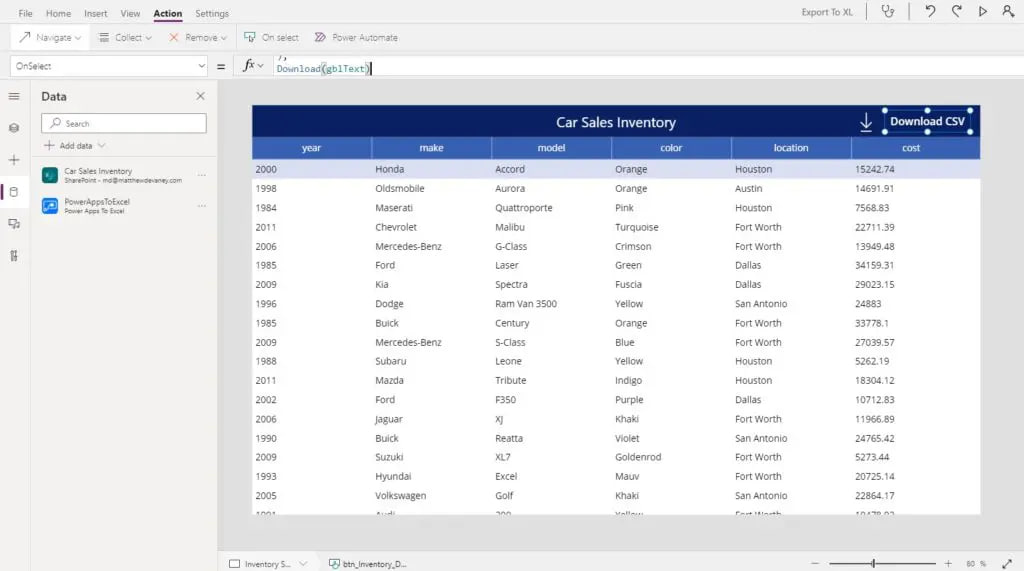
Excel is one of the most popular business apps in the world so when people see data inside of Power Apps its natural for them to ask “can I download it to Excel?” The answer is yes, definitely! With a little bit of help from Power Automate, Power Apps can transform table data from a datasource or a collection into a CSV which the user can open in Excel.
In this article I will show you how to use Power Apps to export a file to Excel.
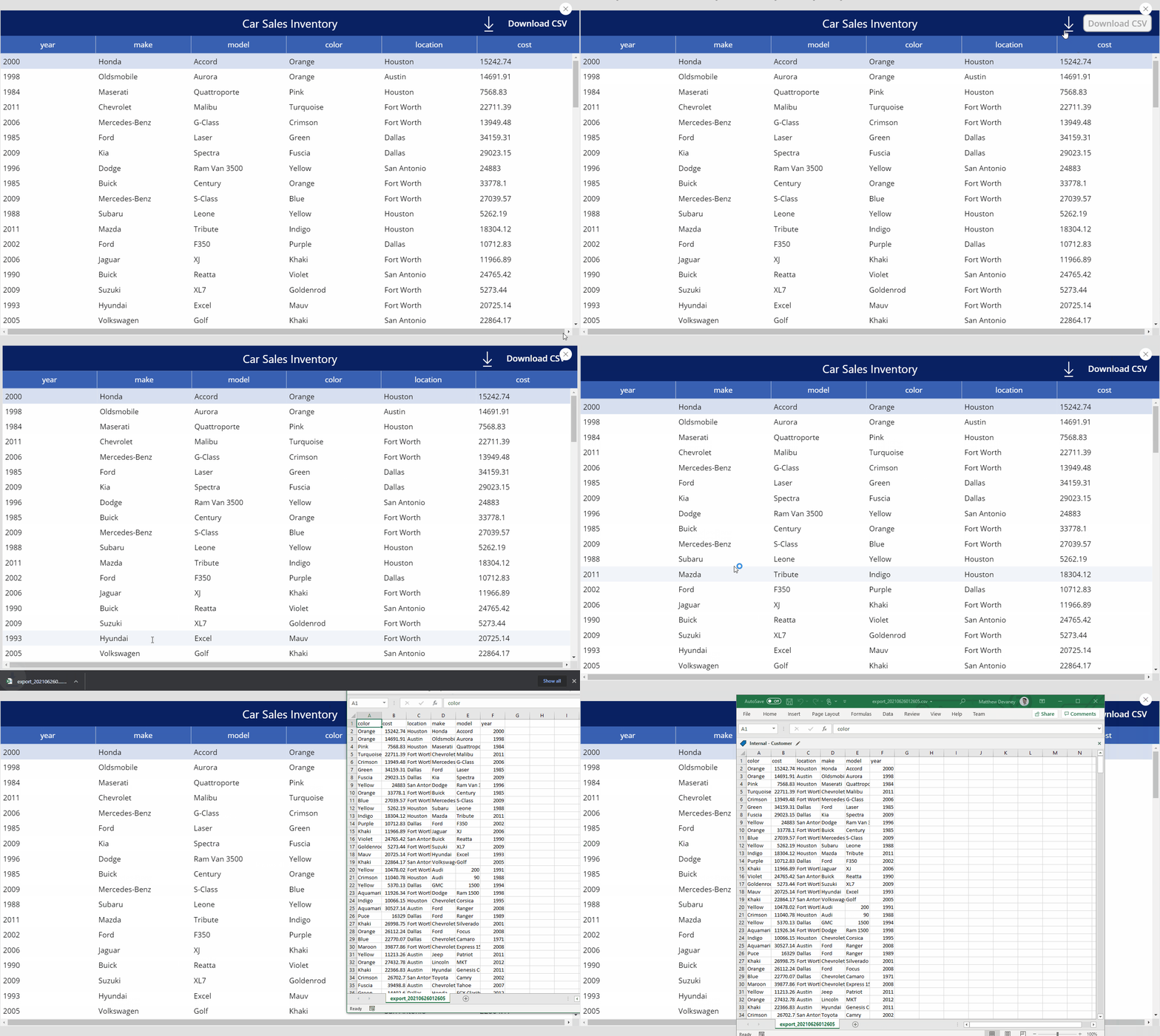
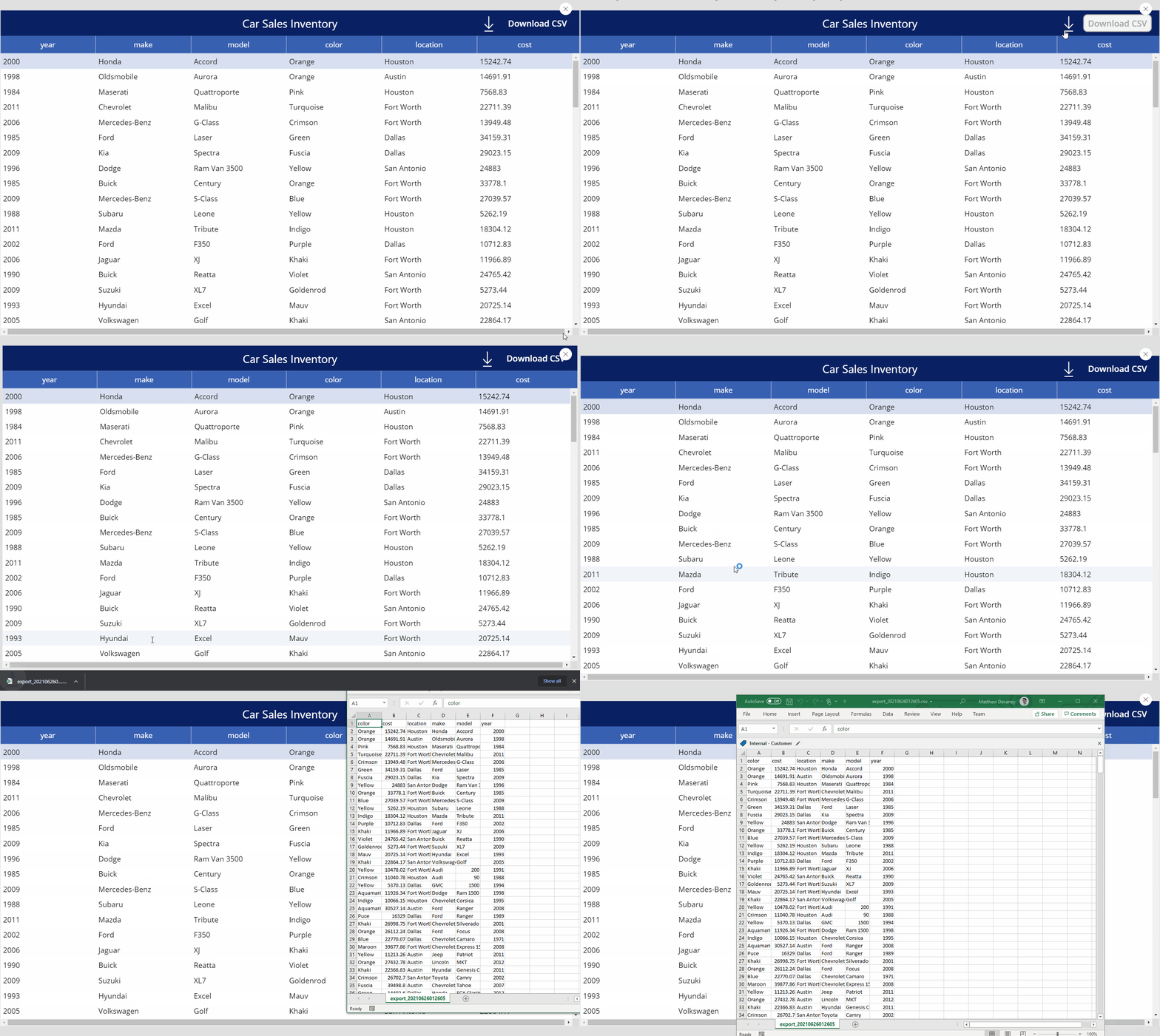
The Car Sales Inventory app is used by salespeople at a car dealership to create a report on all the cars currently in-stock. They open the app to the inventory screen, click on a button to download and then open the CSV file in Excel.
Setup The SharePoint List
Create a new SharePoint list called Car Sales Inventory with the following columns:
- Year (number)
- Make (single-line text)
- Model (single-line text)
- Color (single-line text)
- Location (single-line text)
- Cost (number)
Include this data in the list:
| Year | Make | Model | Color | Location | Cost |
| 2000 | Honda | Accord | Orange | Houston | 15,242.74 |
| 1998 | Oldsmobile | Aurora | Orange | Austin | 14,691.91 |
| 1984 | Maserati | Quattroporte | Pink | Houston | 7,568.83 |
| 2011 | Chevrolet | Malibu | Turquoise | Fort Worth | 22,711.39 |
| 2006 | Mercedes-Benz | G-Class | Crimson | Fort Worth | 13,949.48 |
| 1985 | Ford | Laser | Green | Dallas | 34,159.31 |
| 2009 | Kia | Spectra | Fuscia | Dallas | 29,023.15 |
| 1996 | Dodge | Ram Van 3500 | Yellow | San Antonio | 24,883 |
| 1985 | Buick | Century | Orange | Fort Worth | 33,778.10 |
| 2009 | Mercedes-Benz | S-Class | Blue | Fort Worth | 27,039.57 |
Insert A Table To Display Information In The App
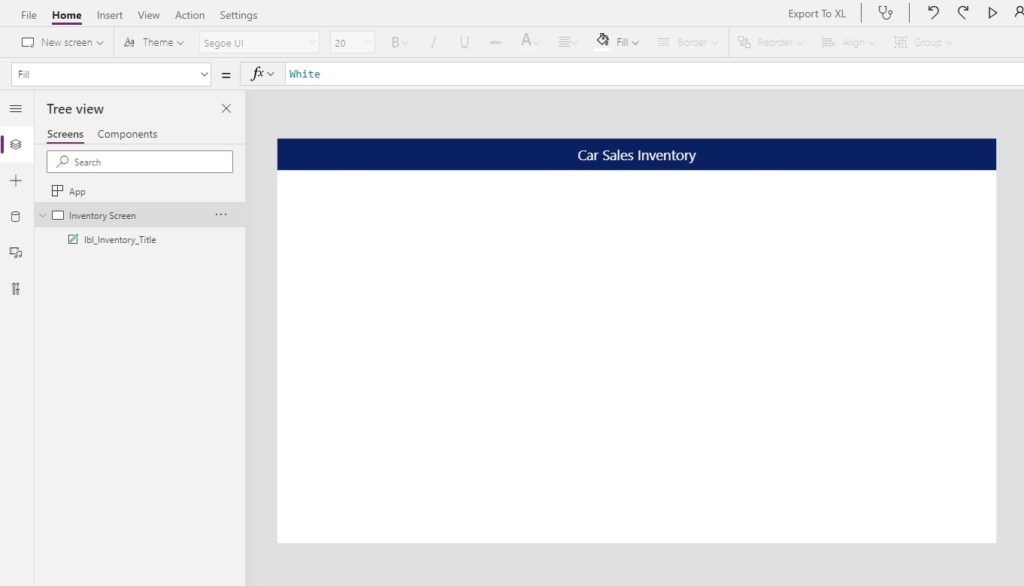
Open Power Apps Studio and create a new app from blank. Place a label at the top of the screen showing the title.
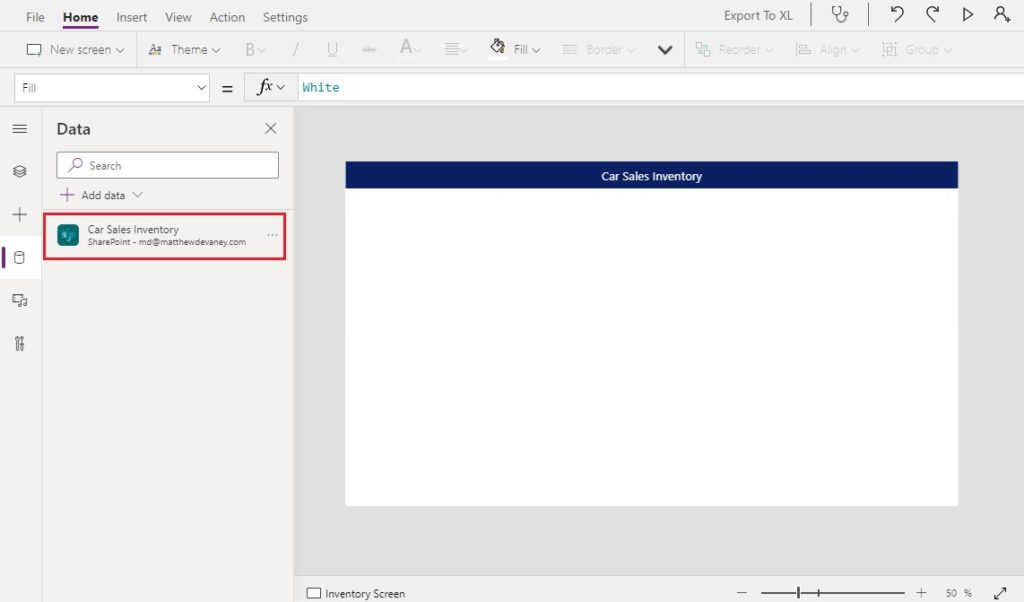
Add the Car Sales Inventory SharePoint list as a datasource.
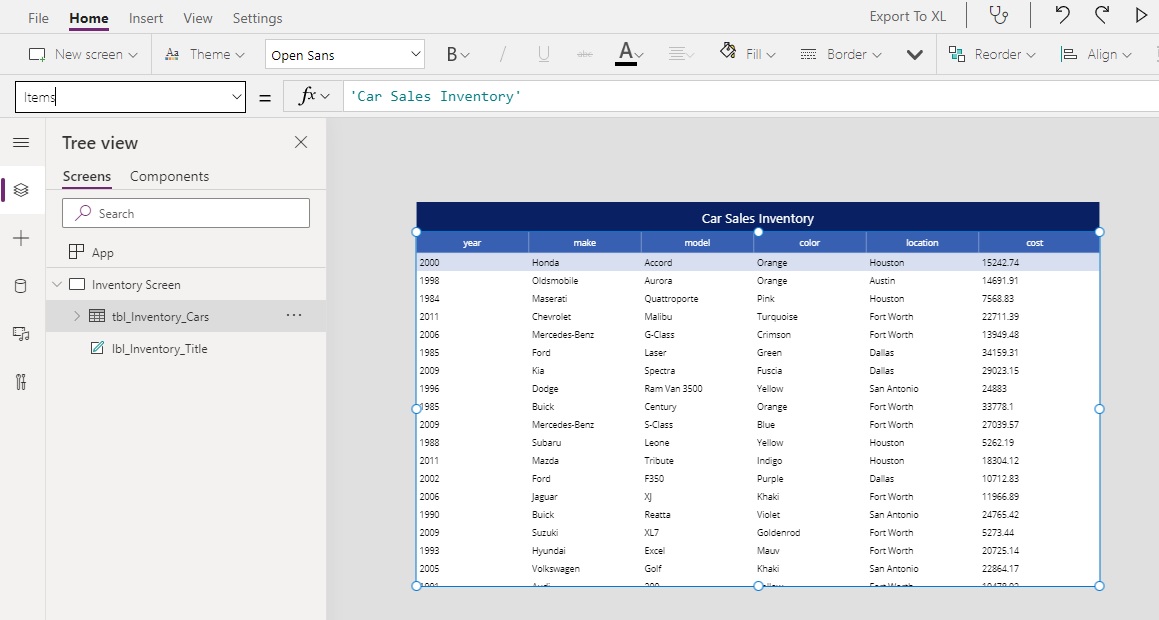
Then insert a data table with and update the Items property to ‘Car Sales Inventory‘ to show the list of cars available for sale.
Preparing A JSON Sample For The Export To Excel Flow
The CSV file will be created in Power Automate so we need a way to pass data from the table into a Flow. We will do this by converting the data into a JSON. To prepare for making the Flow we need to generate a sample of the JSON being passed. Create a new blank screen and place a button on it.
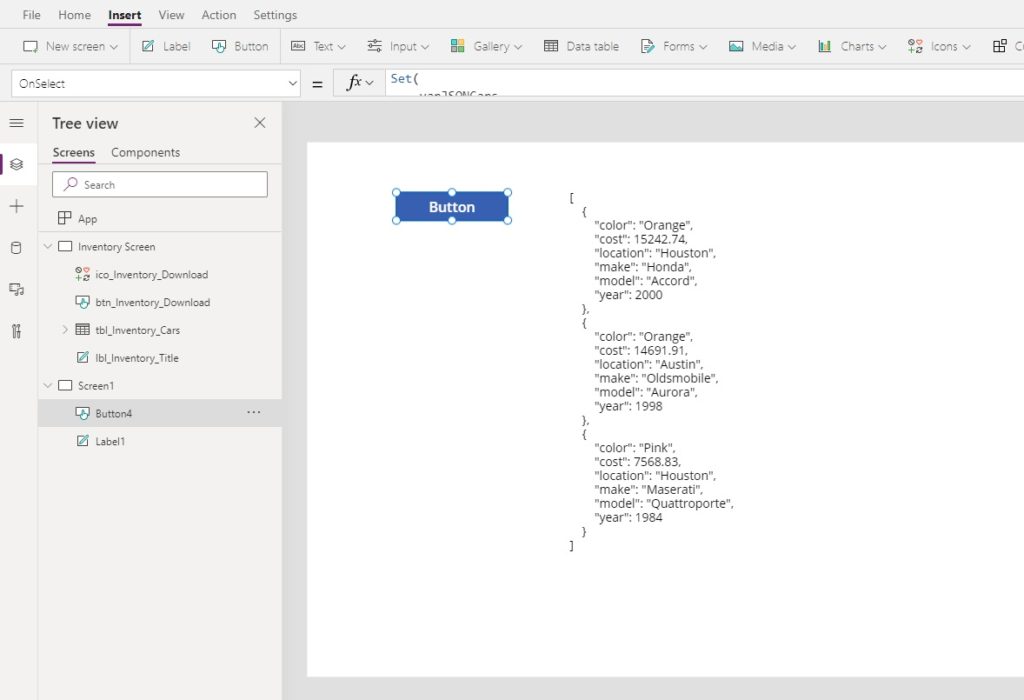
Put this code in the OnSelect property of the button. The JSON function converts table data, whether from a datasource or from a collection, into text formatted as a JSON.
Set(
     varJSONCars,
     JSON(
         ShowColumns(
             FirstN('Car Sales Inventory', 3),
             "year",
             "make",
             "model",
             "color",
             "location",
             "cost"
         ),
         JSONFormat.IndentFour
     )
 )Code language: JavaScript (javascript)
Then insert a label beside the button and put this code in the Text property.
varJSONCars
The label will show some JSON formatted text like this. That’s all for now, we are ready to create our flow. We will use this JSON sample in a few moments.
[
    {
        "color": "Orange",
        "cost": 15242.74,
        "location": "Houston",
        "make": "Honda",
        "model": "Accord",
        "year": 2000
    },
    {
        "color": "Orange",
        "cost": 14691.91,
        "location": "Austin",
        "make": "Oldsmobile",
        "model": "Aurora",
        "year": 1998
    },
    {
        "color": "Pink",
        "cost": 7568.83,
        "location": "Houston",
        "make": "Maserati",
        "model": "Quattroporte",
        "year": 1984
    }
]Code language: JSON / JSON with Comments (json)
Creating The Export To Excel Flow
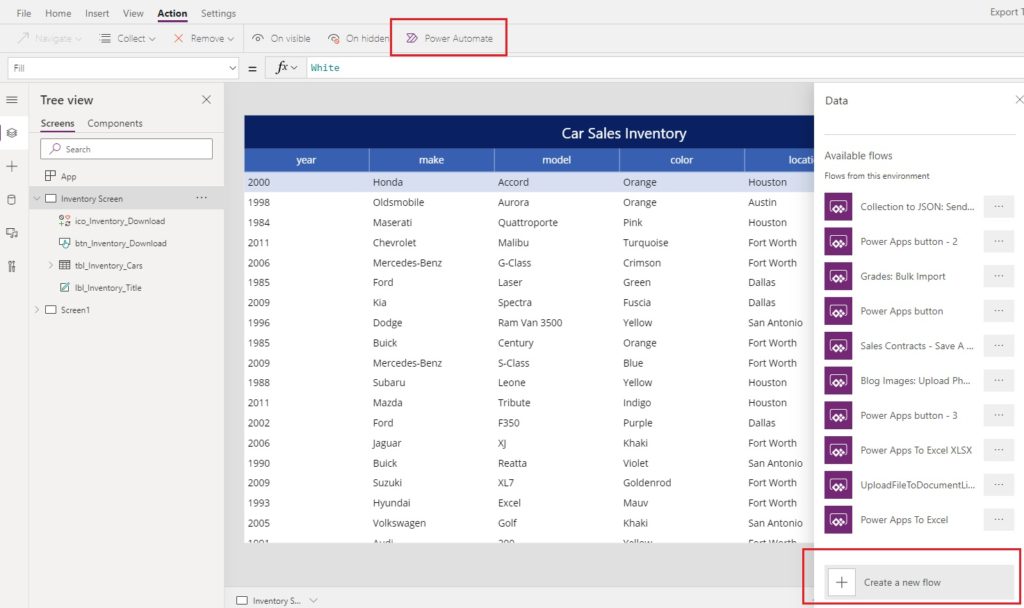
Now we are ready to make the flow to convert the Car Sales Inventory table data to a CSV file. Go to the Action tab and select Power Automate. Then click create a new flow.
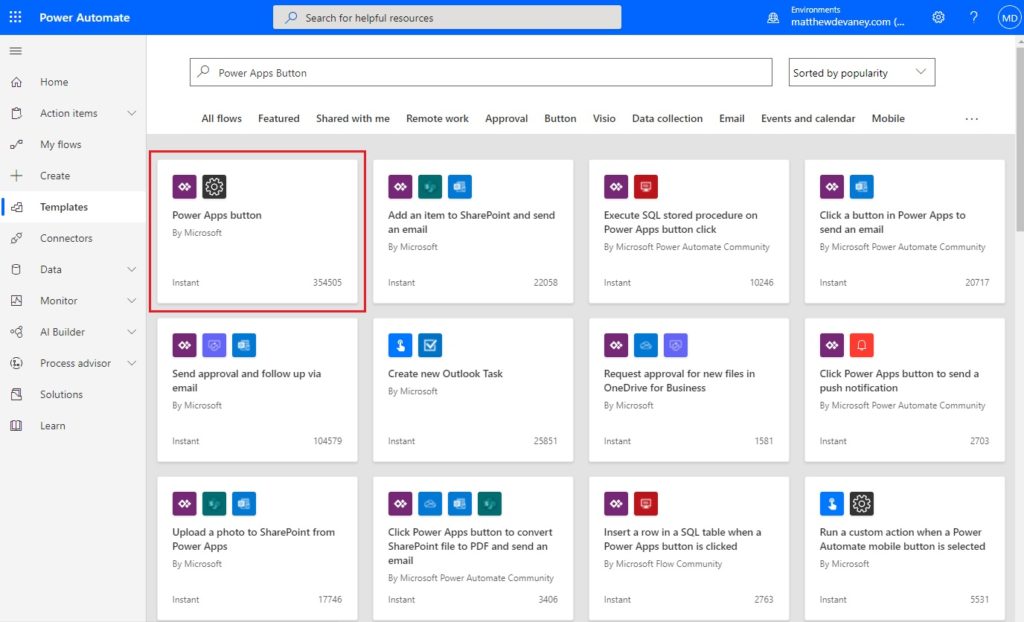
Choose the Power Apps button template.
Name the flow PowerAppsToExcel and click Save. We want to use the PowerApps (V2) trigger because it we can manually define inputs and their types. Delete the PowerApps trigger and add PowerApps(V2) in its place.
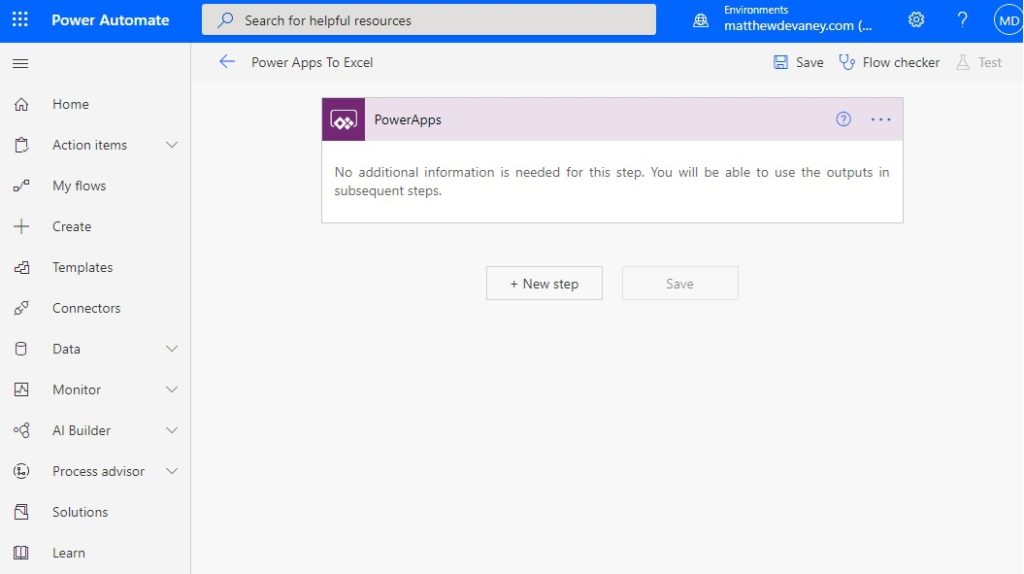
Create a flow with all of the steps shown below.
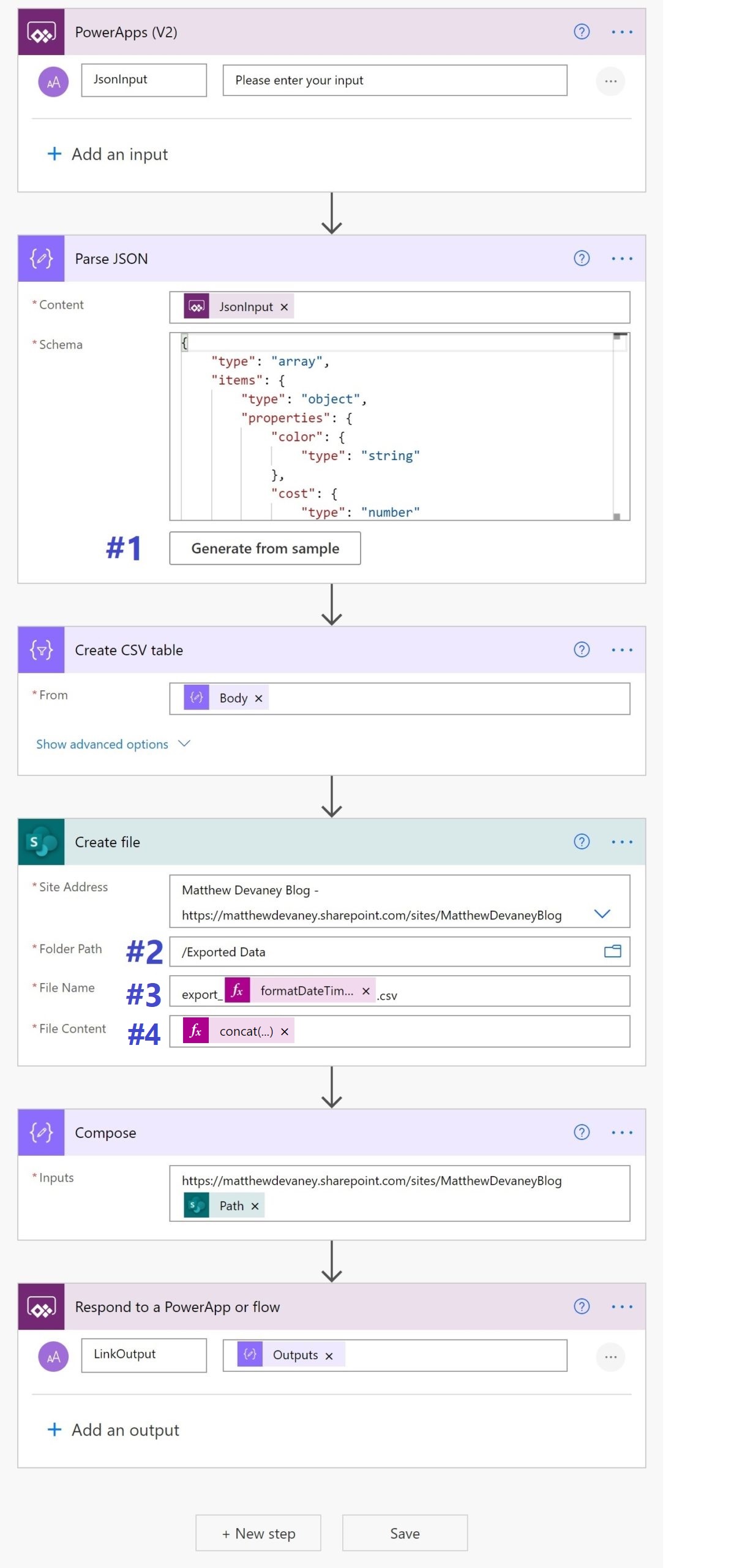
Here are a few additional instructions for building the flow corresponding to the numbers on the diagram:
- Click the generate from sample button and copy + paste the the JSON we created in Power Apps earlier.
- A new document library called Export Data must added in SharePoint before selecting it in the create file step.
- The Flow will not create a new file if a CSV with the same name already exists. We can make sure this doesn’t happen by adding a timestamp to the end. Here’s the flow expression you should use.
formatDateTime(utcNow(), 'yyyyMMddhhmmss')Code language: JavaScript (javascript)
4. We want to encode the CSV file in UTF-8 format so it can handle special characters (accented letters, currency symbols, etc). For example, I had a problem where the Euro symbol (€) was not appearing correctly in my CSV file. To solve the issue, use this code. The 3 character prefix in-front of the body(‘Create_CSV_table) identifies the format to Power Automate as UTF-8.
concat(uriComponentToString('%EF%BB%BF'),body('Create_CSV_table'))
Code language: JavaScript (javascript)
Connect The ‘Export To Excel Flow’ To Power Apps
The salesperson can the download the Car Sales Inventory as a CSV file and view the data in Excel. Insert a new button onto the screen with the text “Download” and place a download icon beside it. Select the button, then open the Power Automate pane from the top-menu and choose the flow we created Power Apps To Excel.
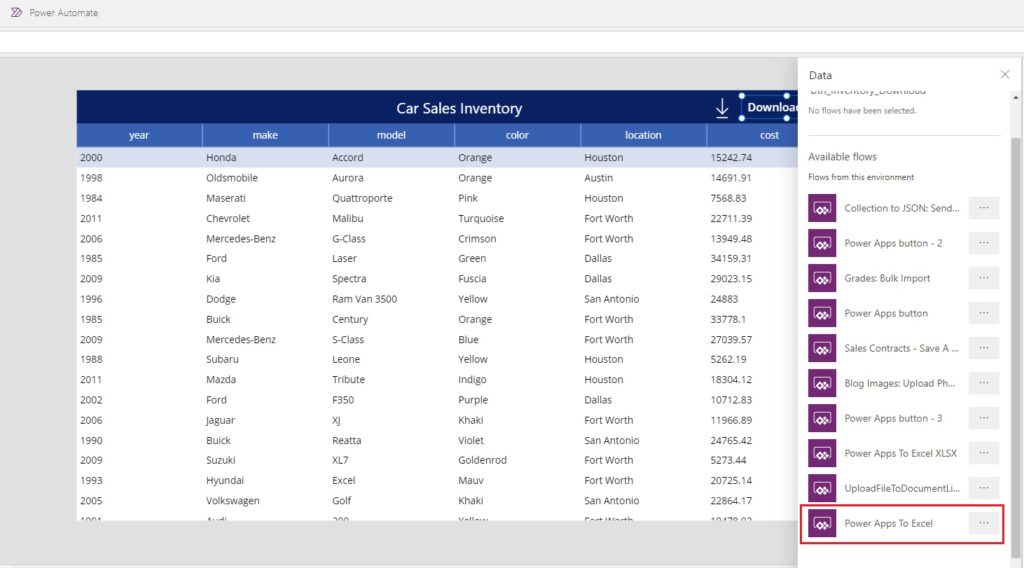
Browse to the OnSelect property of the button, remove any code in there…
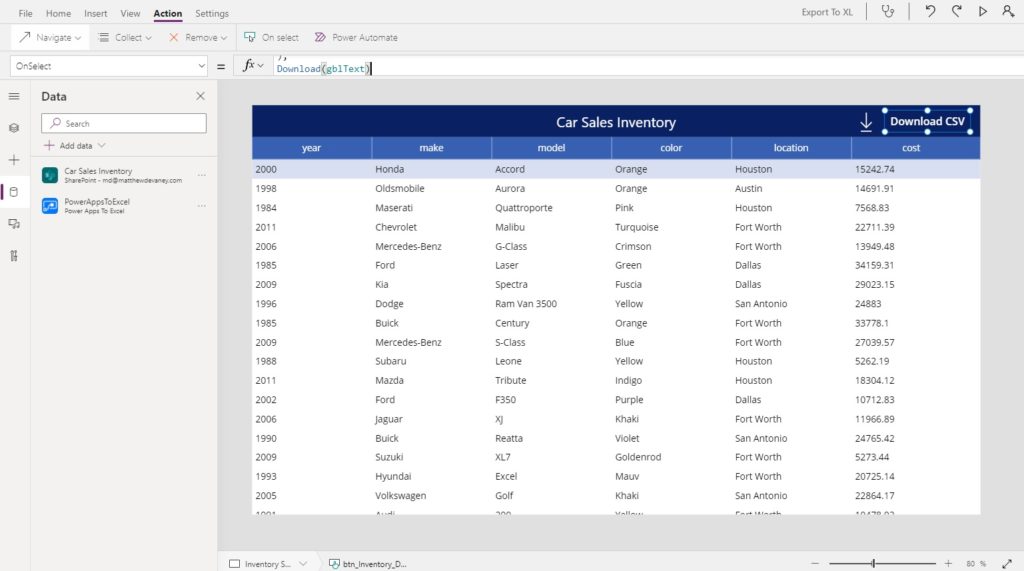
…and then use this code instead. It will convert the table data into a JSON, run the flow which returns a CSV file and then downloads the file onto the local drive. From there the salesperson can open the CSV file in Excel.
// convert the table data into a JSON
Set(
    varJSONCars,
    JSON(
        ShowColumns(
            'Car Sales Inventory',
            "year",
            "make",
            "model",
            "color",
            "location",
            "cost"
        ),
        JSONFormat.IndentFour
    )
);
// run the flow
Set(
    varCSVFile,
    PowerAppsToExcel.Run(varJSONCars).linkoutput
);
// download the file to Excel
Download(varCSVFile)Code language: JavaScript (javascript)
Download The CSV File And Open In Excel
We’re done! Go ahead and give the app a try. You can successfully export a table to Excel.


forum Discussion (0 comments)
Join the Discussion
Login to share rich-text comments and reply to other members.
No comments yet. Be the first to share your thoughts!