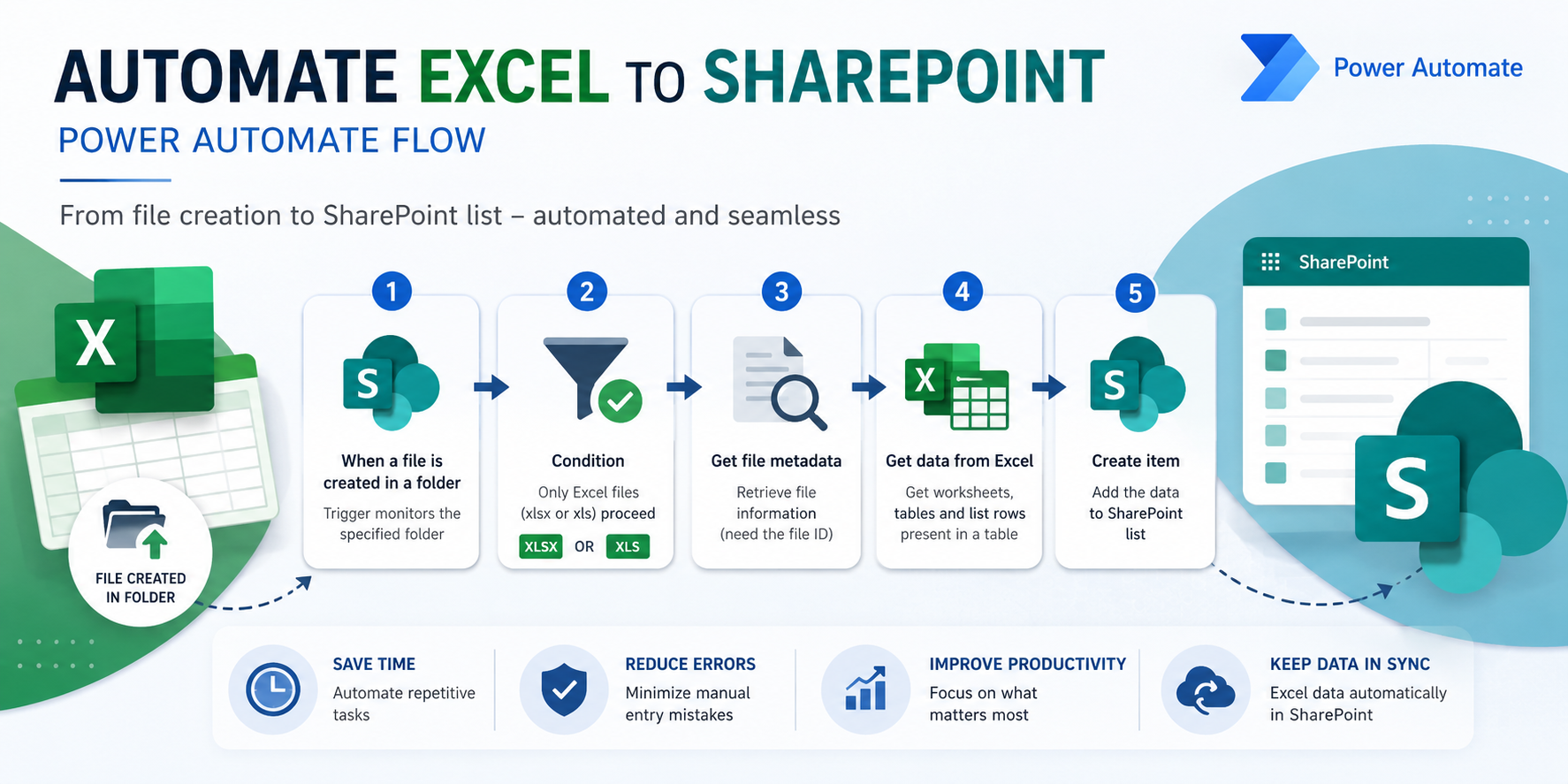
The trigger
So we need a trigger to monitor if a file was created in a folder, and SharePoint has a trigger to do that. It’s called “When a file is created in a folder”. Although it only monitors a folder and not subfolders, it’s perfect for this example. Here’s what it looks like:
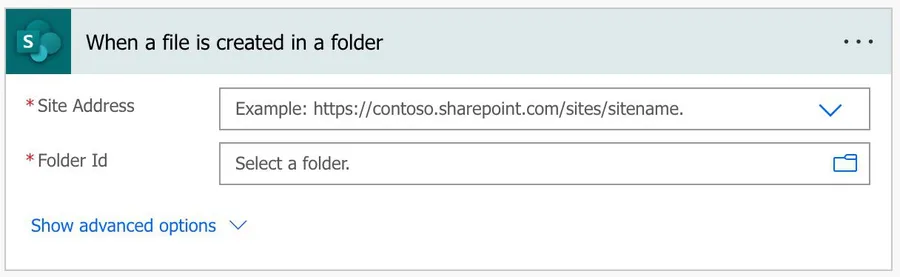
With this trigger, we can have all the file information as soon as it’s created. Now let’s look at what to do with the file.
We only want Excel files
So now that we have one file, we want to filter it so that we only have Excel files. To do that, a simple “condition” action will do the trick.

Notice two things. First, we’re getting the “content-type” of the file. Don’t try to understand what it means since the names are super obtuse and based on conventions. But here’s Excel (xlsx) file:
application/vnd.openxmlformats-officedocument.spreadsheetml.sheet
And here’s the Excel (xls) file:
application/vnd.ms-excel
You can get the “Content-Type” in the list.

Another thing to notice is that in the “Condition” action we are checking if it’s an Excel (xlsx) “OR” an Excel (xls) since it can’t be both. Please notice this when building your Flow.

Now that we have a condition, let’s fetch the data.
Fetching the data
Now that we have the Excel file, we need to get its information. But we have a problem. The “When a file is created in a folder” returns us the file’s “Identifier,” but we need the file “ID.” It isn’t apparent, but that’s how it works. So we need to do a “Get file metadata” action to get the information of the file before we can continue.
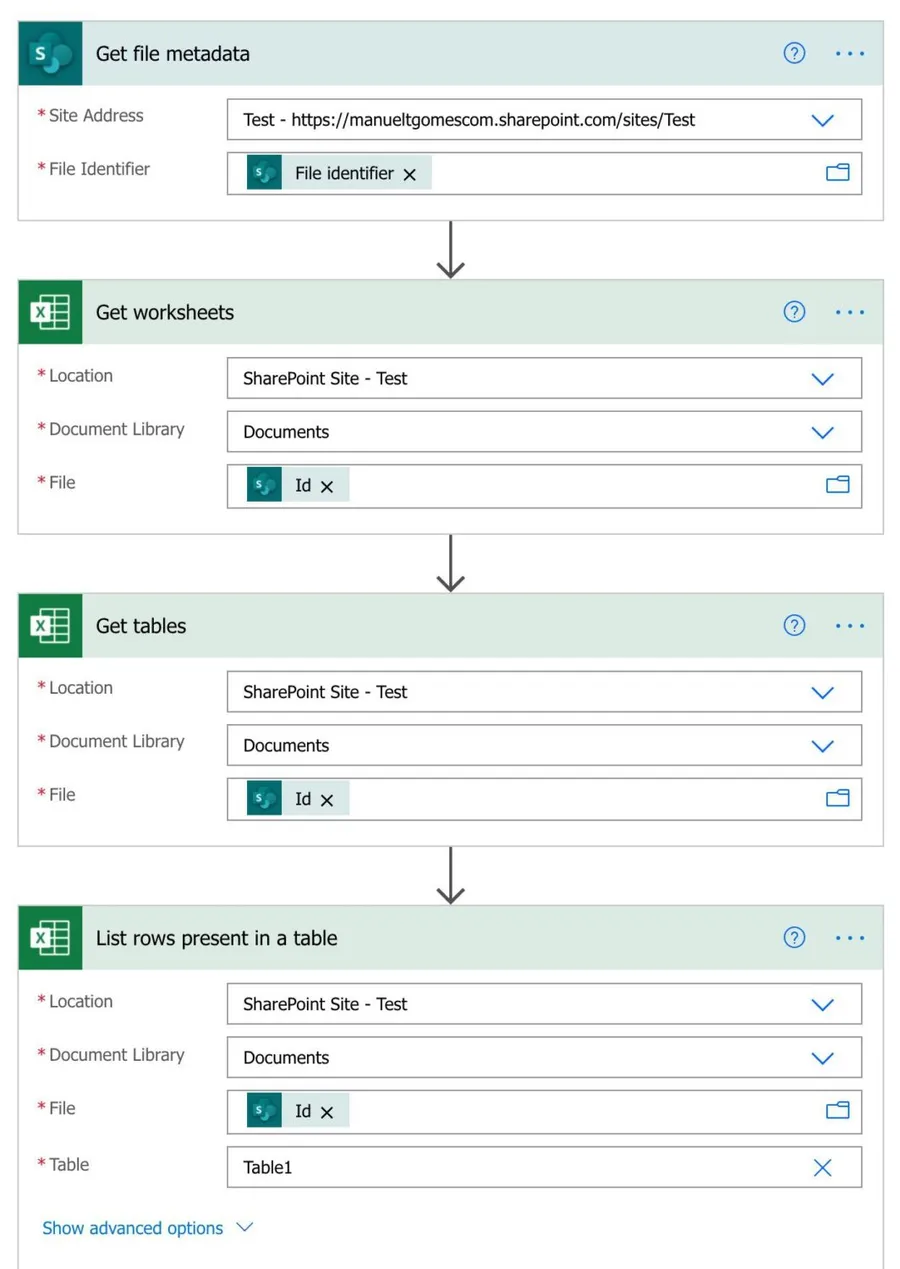
The following steps are to get the information from Excel. Depending on your Excel’s complexity, you can have multiple worksheets and tables to get them all, use an Apply to each action to go over each one, and then fetch the tables with that information. I included the actions so that you know what to use.
The critical part is the last action, the “List rows present in a table,” which fetches all the data you need to update SharePoint.
Adding the data
Now that you have the information from Excel, you only need to update SharePoint, by assing the items to the list. You can use the “Create item” action to do that.
The Excel and the SharePoint list don’t need to have the same structure since you can have intermediate steps to “convert” the data, but the Excel should have the information you need to insert into SharePoint.


forum Discussion (0 comments)
Join the Discussion
Login to share rich-text comments and reply to other members.
No comments yet. Be the first to share your thoughts!