What We’re Building
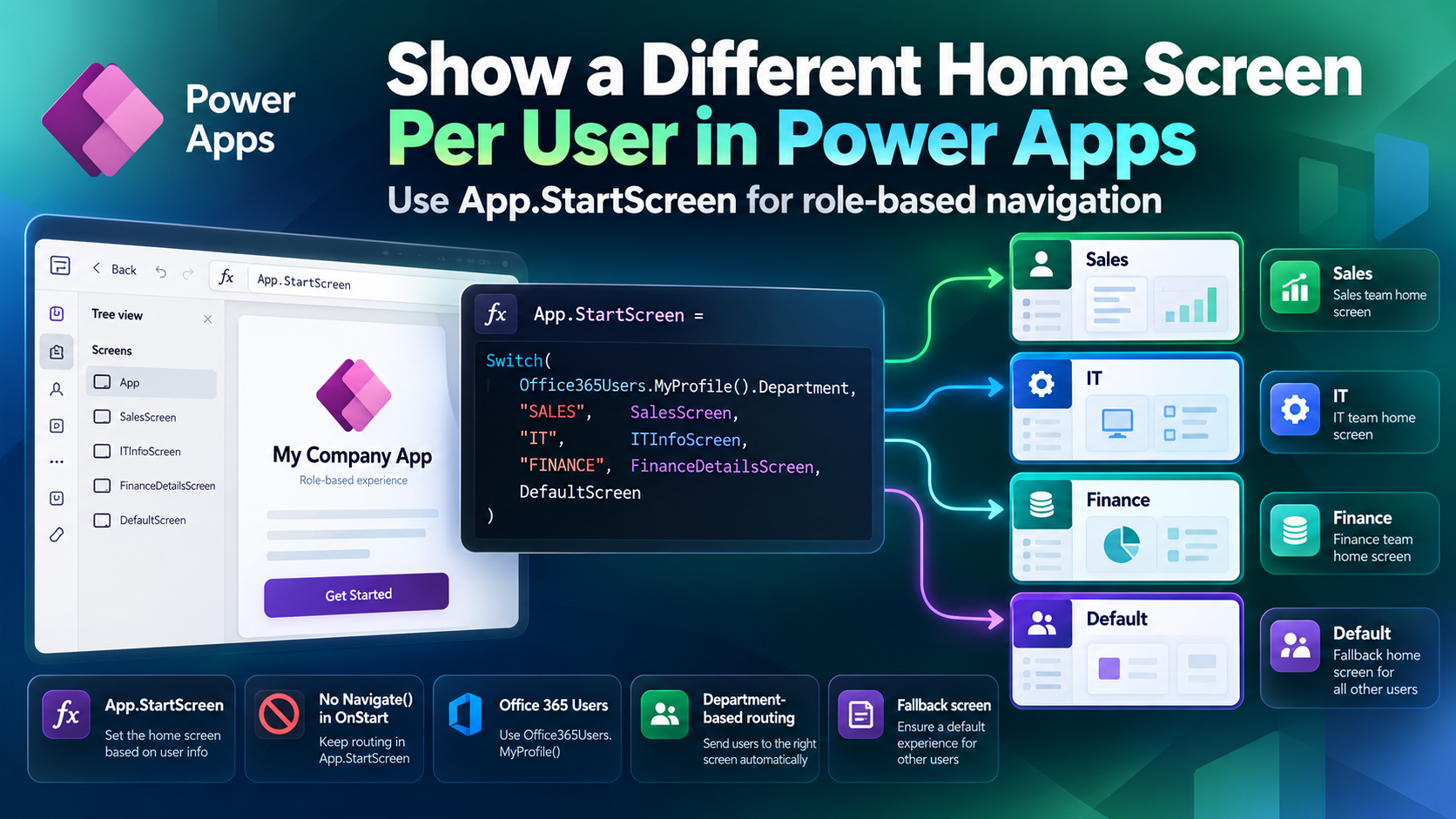
Let’s say you have three user types in your organization: Sales, IT, and Finance. You want each group to land on a screen tailored for them the moment they open the app. We’ll build exactly that.
By the end of this tutorial, you’ll have:
Video PausedA canvas app with three separate home screens
- Role-based navigation using
App.StartScreen - A clean formula that reads the user’s department from their Microsoft 365 profile
- A fallback screen for users whose department doesn’t match
Important: The Old Power Apps Method No Longer Works (Read This First)
If you’ve seen older tutorials — including an earlier version of this one — that use Navigate() inside App.OnStart, please stop. Microsoft has officially retired that approach.
Here’s what used to happen: developers would write something like this inp.OnStart:
Set(vName, Office365Users.MyProfile().Department);
If(vName = "SALES", Navigate(SalesScreen), ...)
Power Apps now throws this error:
“Navigate is not permitted in OnStart. Use the StartScreen property instead.”
And if you tried to move that Navigate() to App.StartScreen, you’d get another error:
“Behavior function in a non-behavior property.”
The old workaround was to enable a “Retired” toggle in app settings. That toggle still exists for now, but Microsoft has made it clear it’s going away. Don’t build on it.
The correct approach — and what this tutorial uses — is App.StartScreen with a declarative formula. No Navigate(), no workarounds.
Why App.StartScreen Is Better in Power Apps
Here’s the quick version of why Microsoft moved in this direction:
- Faster app loads.
OnStart used to block the app from showing anything until all its code has finished running. StartScreen doesn’t block anything — it evaluates in parallel. - Always up to date.
StartScreen recalculates automatically when its dependencies change. No stale variable values. - Simpler code. You don’t need a variable to hold the department. You reference it directly in the formula.
- It’s where Microsoft is headed.
App.OnStart is being phased out entirely in favour of App.Formulas (Named Formulas). More on that later.
Show a Different Home Screen Per User in Power Apps
Let’s get started step by step.
Step 1: Create a New Power Apps Canvas App
- Go to make.powerapps.com and sign in.
- Click + Create from the left sidebar.
- Select Blank app, then choose Blank canvas app.
- Give it a name — something like Role-Based Home Screen App — and choose your format (Tablet or Phone).
- Click Create.
Your new app opens with Screen1 as the default.

Step 2: Create Your Department-Specific Power Apps Screens
For this example, I’m building screens for three departments: Sales, IT, and Finance. You can adapt this to whatever roles or departments exist in your organization.
- In the left panel (Tree view), right-click on Screen1 and rename it SalesScreen.
- Click the + button at the top of the Tree view to add a new screen. Name it ITInfoScreen.
- Add one more screen and name it FinanceDetailsScreen.
- Add one final screen and name it DefaultScreen — this is your fallback for users who don’t match any department.
Tip: Add a label to each screen with the screen name while you’re building, so you can easily tell them apart during testing. You can remove it later. For naming screens follow the Power Apps naming conventions.
At this point, your Tree view should show four screens. Now let’s make the app automatically navigate to the right one.
Step 3: Add the Office 365 Users Connector in Power Apps
The formula we’ll use pulls the logged-in user’s department from their Microsoft 365 profile. To do that, we need the Office 365 Users connector.
- In the left panel, click the Data icon (cylinder icon).
- Click + Add data.
- In the search bar, type Office 365.
- Select Office 365 Users from the results.
- If prompted, sign in and grant permissions.
Once added, you’ll see it appear in your data sources list.

Step 4: Set Up Power Apps App.StartScreen
This is the heart of the tutorial. Click on App in the Tree view (it’s right at the top), then look for the StartScreen property in the property dropdown on the top left of the formula bar.
Enter this formula:
Switch(
    Office365Users.MyProfile().Department,
    "SALES", SalesScreen,
    "IT", ITInfoScreen,
    "FINANCE", FinanceDetailsScreen,
    DefaultScreen
)
Let me break that down:
Office365Users.MyProfile().Department — This fetches the department of whoever is currently signed in, straight from their Microsoft 365 profile.Switch() — checks the department value against each case and returns the matching screen."SALES", "IT", "FINANCE" — These are the department names as they appear in your Microsoft 365 Admin Center (case-sensitive, so match them exactly).DefaultScreen At the end — this is the fallback. If the user’s department doesn’t match any of the cases, they land here.

Important: Do not wrap screen names in quotes. SalesScreen is a screen reference, not a string. "SalesScreen" (with quotes) won’t work — it’ll throw an error.
Here the logged in user department is “Executive Management.”
Before you publish, test it directly in the studio:
- Click the … (ellipsis) menu next to App in the Tree view.
- Select Navigate to StartScreen.
Power Apps will evaluate your formula and jump to the screen that matches your own department. If you land on the DefaultScreen, it means your own Microsoft 365 profile department doesn’t match any of the cases in the formula. That’s fine for now — it means the formula is working.

Step 6: Save and Publish the Power Apps App
- Press Ctrl + S (or click the save icon) to save.
- Click Publish → Publish this version.
Publishing is required. The connector permissions and StartScreen logic won’t fully work until the app is published.
Step 7: Share the Power Apps App and Test with Different Users
To see it working for different users:
- Go back to make.powerapps.com.
- Find your app, click the … menu, and select Share.
- Add the users you want to test with and give them User access.
- Ask them to open the app — or test yourself using different browser profiles logged in with different accounts.

Each user will land on the screen that matches their Microsoft 365 department. If a user’s department field is blank in Microsoft 365, they’ll hit your DefaultScreen.
What If the Department Field Is Empty or Wrong?
This is the most common issue I see. Here’s how to handle it:
- The department field is blank. If a user has no department set in Microsoft 365,
MyProfile().Department it returns blank and Switch() falls through to your default screen. This is fine — that’s exactly what DefaultScreen it’s for. - The department name doesn’t match. The comparison is case-sensitive. If the Microsoft 365 admin entered “Sales” (capital S, lowercase ales) but your formula says “SALES”, it won’t match. Always check the exact value in the Microsoft 365 Admin Center under the user’s profile.
- The connector permission prompt. The first time a user runs the app, they’ll see a pop-up asking them to allow the Office 365 Users connector access. They need to click Allow for the formula to work. This only happens once.
Alternative Approach: Using User().Email Instead of Department In Power Apps
If your organization doesn’t use the department field consistently, or you want more precise control, you can route users by email address instead:
Switch(
    User().Email,
    "alice@contoso.com", SalesScreen,
    "bob@contoso.com", ITInfoScreen,
    "carol@contoso.com", FinanceDetailsScreen,
    DefaultScreen
)
User() is a built-in Power Apps function — no connector needed. The downside is that you have to update the formula every time someone joins or leaves a team. For small, stable teams it works great. For larger organizations, the department or Azure AD group approach scales better.
Advanced: Using Azure AD Security Groups for Role-Based Navigation
If you want the most scalable and maintainable setup — especially in organizations with frequently changing teams — use Azure AD Security Groups instead of departments or emails.
The idea is:
- Your IT admin creates security groups in Azure AD (e.g., “Sales Team”, “IT Team”).
- Users are added to the appropriate group by the IT admin.
- Your Power Apps formula checks which group the current user belongs to.
To do this, you’ll need the Azure AD connector (in addition to Office 365 Users). The formula uses AzureAD.CheckMemberGroupsV2() to check group membership at app start.
This approach means you never have to touch the app formula when someone new joins — the IT admin just adds them to the right Azure AD group. For enterprise apps, this is the way to go.
While App.StartScreen It is the right property for navigation; it’s worth knowing that App.OnStart it itself is being removed from Power Apps entirely. Microsoft has introduced App.Formulas — also called Named Formulas — as its replacement.
Named Formulas are defined once App.Formulas and are available throughout the entire app, similar to variables. The key difference: they’re evaluated on demand (not at startup), which makes your app load faster.
For example, instead of setting a variable in OnStart:
// Old way — OnStart
Set(varUserDept, Office365Users.MyProfile().Department)
You’d write a Named Formula in App.Formulas:
// Modern way — App.Formulas
UserDepartment = Office365Users.MyProfile().Department;
Then reference UserDepartment anywhere in the app. If you’re building a new app today, start using App.Formulas for any values you’d previously put in OnStart.
Common Errors and Fixes
| Error | Why It Happens | Fix |
|---|
| “Navigate is not permitted in OnStart” | You used Navigate() inside App.OnStart | Move navigation logic to App.StartScreen using Switch() or If() |
| “Behavior function in a non-behavior property” | You used Navigate() inside App.StartScreen | Remove Navigate() — use screen references directly (e.g., SalesScreen, not Navigate(SalesScreen)) |
| App always shows DefaultScreen | Department field in Microsoft 365 is blank, or casing doesn’t match | Check user profile in M365 Admin Center; match the exact casing in your formula |
| Connector permission pop-up blocks navigation | First-time users haven’t granted Office 365 Users connector permission | Ask users to click Allow on first launch |
| The app wasn’t republished after changes | App wasn’t republished after changes | Always publish after making formula changes |



forum Discussion (0 comments)
Join the Discussion
Login to share rich-text comments and reply to other members.
No comments yet. Be the first to share your thoughts!