When working with Power Apps and Power Automate together, you may sometimes receive JSON data from a flow. However, Power Apps does not always recognize the structure of that JSON automatically.
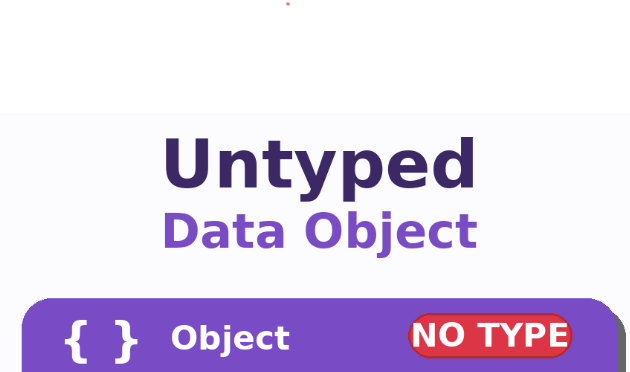
Instead of treating the response as a normal table or record, Power Apps treats it as an Untyped Object.
This is one of the most common challenges developers face when using ParseJSON().
What is an Untyped Object?
An Untyped Object is data that Power Apps knows exists, but does not fully understand the structure or data types of.
For example, Power Apps may know a field called DisplayName exists, but it does not automatically know whether it is:
- Text
- Number
- Boolean
- Record
- Table
Because of this, you cannot directly use the values without converting them.
Example Scenario
When Power Apps receives JSON data through ParseJSON(), the result becomes an Untyped Object.
To use the data properly, the common pattern is:
ClearCollect(
    CollectionName,
    ForAll(
        Table(ParseJSON(JsonData)),
        {
            Column1: Text(Value.Column1),
            Column2: Value(Value.Column2),
            Column3: Boolean(Value.Column3)
        }
    )
)
What This Pattern Does
This structure performs four important steps:
1. Parse the JSON
ParseJSON(JsonData)
Converts raw JSON text into an Untyped Object.
At this stage, Power Apps still does not fully understand the data types.
2. Convert the JSON Array into a Table
Table(ParseJSON(JsonData))
Wraps the parsed JSON so Power Apps can loop through it using ForAll().
3. Loop Through Each Record
ForAll(...)
Processes each item inside the JSON array individually.
Inside the loop:
Value
represents the current JSON object.
4. Explicitly Convert Data Types
This is the most important concept.
Because the fields are untyped, you must convert them into proper Power Apps data types.
Examples:
Text(Value.Name)
Converts to Text.
Value(Value.Amount)
Converts to Number.
Boolean(Value.IsActive)
Converts to Boolean.
DateValue(Value.CreatedDate)
Converts to Date.
Why Type Conversion is Required
Without conversion, Power Apps treats the fields as unknown objects.
That causes issues such as:
Invalid argument type
Expected Text value
Incompatible type errors
Filtering and sorting failures
The conversion functions tell Power Apps exactly how each field should behave.
General Real-World Example
Suppose your flow returns this JSON:
[
  {
    "Title": "Laptop",
    "Price": 1200,
    "InStock": true,
    "PurchaseDate": "2025-01-15"
  }
]
You would handle it like this:
ClearCollect(
    colProducts,
    ForAll(
        Table(ParseJSON(flow.Run().result)),
        {
            Title: Text(Value.Title),
            Price: Value(Value.Price),
            InStock: Boolean(Value.InStock),
            PurchaseDate: DateValue(Value.PurchaseDate)
        }
    )
)
Now Power Apps fully understands:
Title → Text
Price → Number
InStock → Boolean
PurchaseDate → Date
Key Concept
The important thing is not the specific fields.
The important thing is the pattern:
JSON → ParseJSON() → Untyped Object → Type Conversion → Typed Collection
That is the standard approach for handling JSON data in Power Apps.
Common Conversion Functions
| Function | Converts To |
|---|---|
| Text() | Text/String |
| Value() | Number |
| Boolean() | True/False |
| DateValue() | Date |
| DateTimeValue() | Date & Time |
| GUID() | GUID |
| ColorValue() | Color |
Final Takeaway
ParseJSON() only parses the JSON structure.
It does not automatically assign proper Power Apps data types.
The real solution is:
Parse the JSON
Loop through records
Convert each field into the correct type
Store the results in a typed collection
This pattern works for:
Power Automate responses
HTTP requests
APIs
SharePoint REST responses
Dataverse custom connectors
Any JSON-based integration in Power Apps


forum Discussion (0 comments)
Join the Discussion
Login to share rich-text comments and reply to other members.
No comments yet. Be the first to share your thoughts!